Tracking Portfolio Performance
Overview
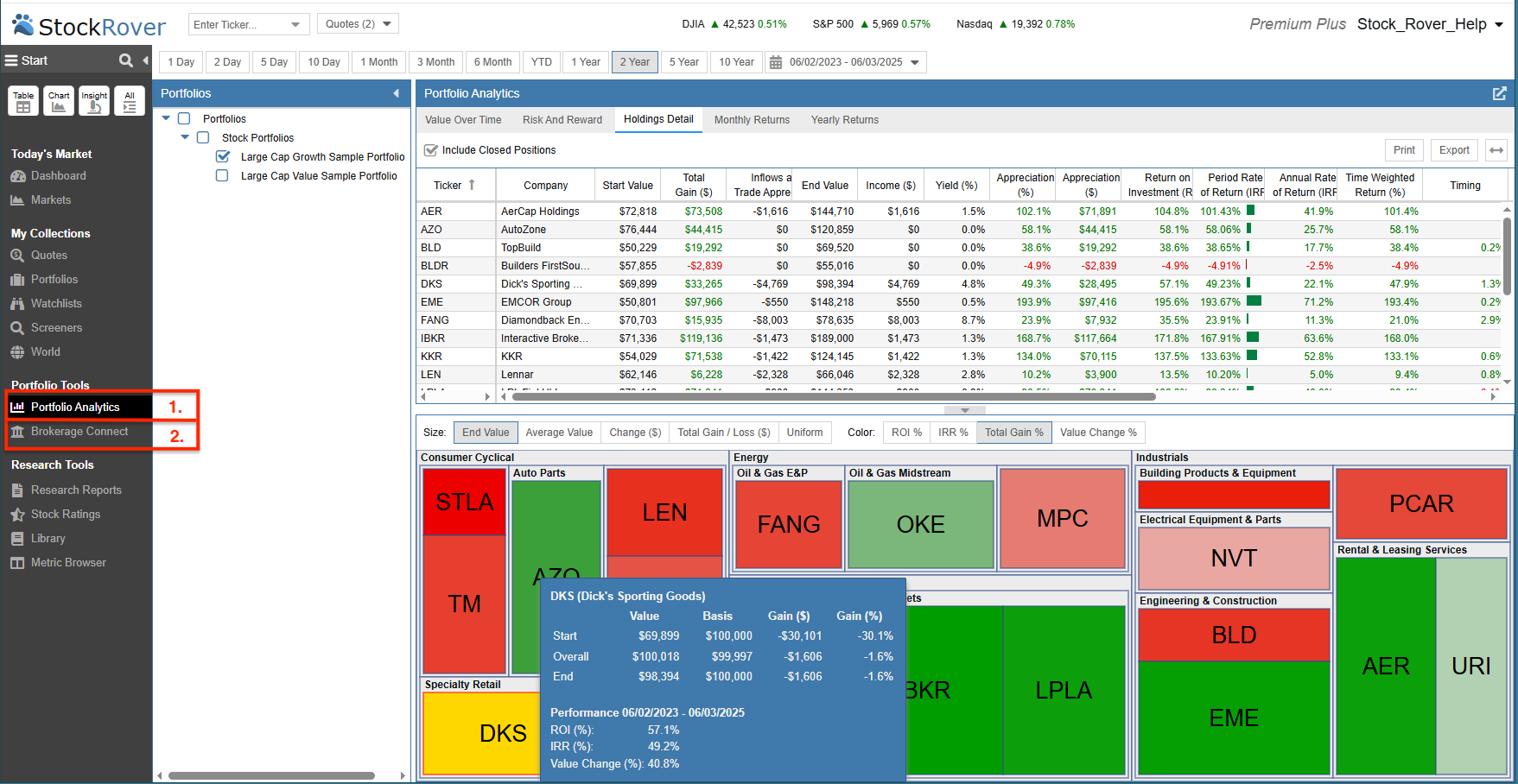
Stock Rover provides a comprehensive set of tools to manage and track your portfolios effectively. When the Start Menu is in “Simple Mode”, it highlights two core functionalities:
- Brokerage Connect – Configure Stock Rover to connect to your brokerage firm(s).
- Portfolio Analytics – Analyze the performance of your portfolios over any timeframe.
Brokerage Connect
To analyze portfolio performance, you first need to import your portfolio details into Stock Rover. The quickest way to accomplish this is by linking a Stock Rover portfolio to your actual holdings via Brokerage Connect.
When you connect via Brokerage Connect, a read-only data feed is established to your brokerage firm(s) via Yodlee, a trusted cloud-based account aggregator.
- Synchronization: The details for each portfolio are synchronized automatically. In addition to being updated nightly, an update is initiated whenever you log in.
- Interactive Brokers Users: If you are an Interactive Brokers user, click here for specific connection instructions.
- Setup: When you select Brokerage Connect from the Start Menu, you will first be presented with the Terms of Service.
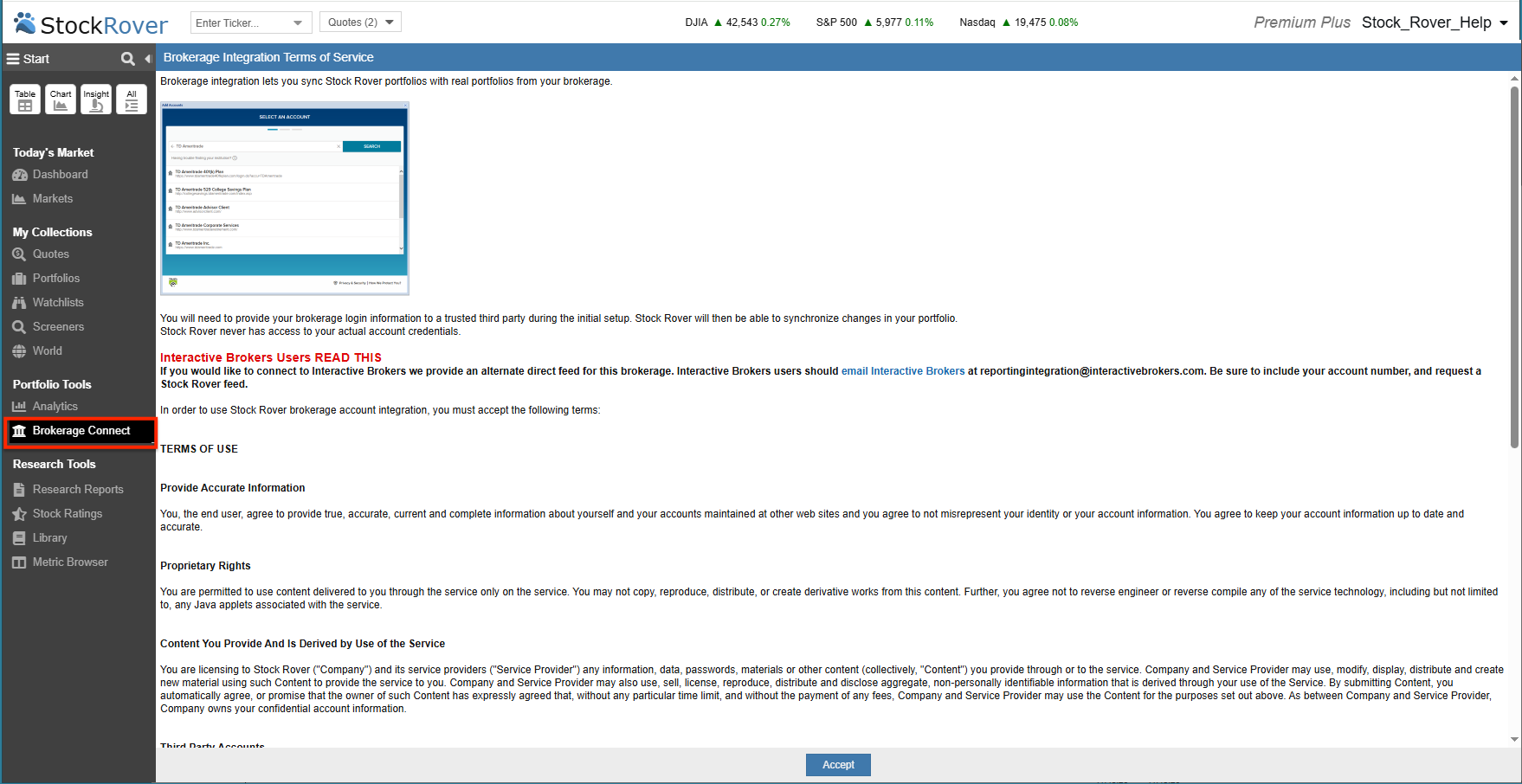
After accepting the terms of service, you’ll be connected to the Yodlee interface, where you’ll be able to search for your brokerage account.
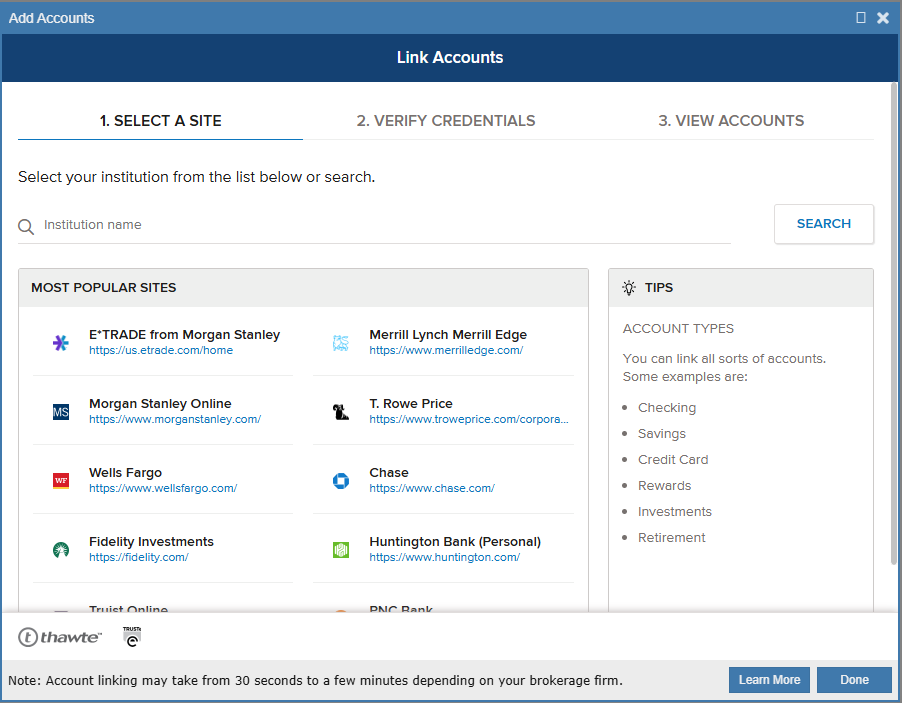
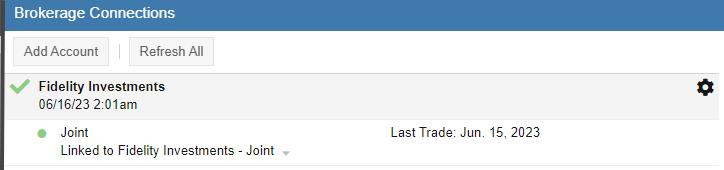
You’ll follow the prompts to enter your account login information. Once the connection has been verified, you’ll see the Brokerage Connections panel in Stock Rover.
By default, the portfolios that appear in the Brokerage Connections panel will be linked to a Stock Rover portfolio with the legal name of the portfolio as it appears in the brokerage account.
Below is an example of a brokerage account connection with a single portfolio.
Portfolio Analytics
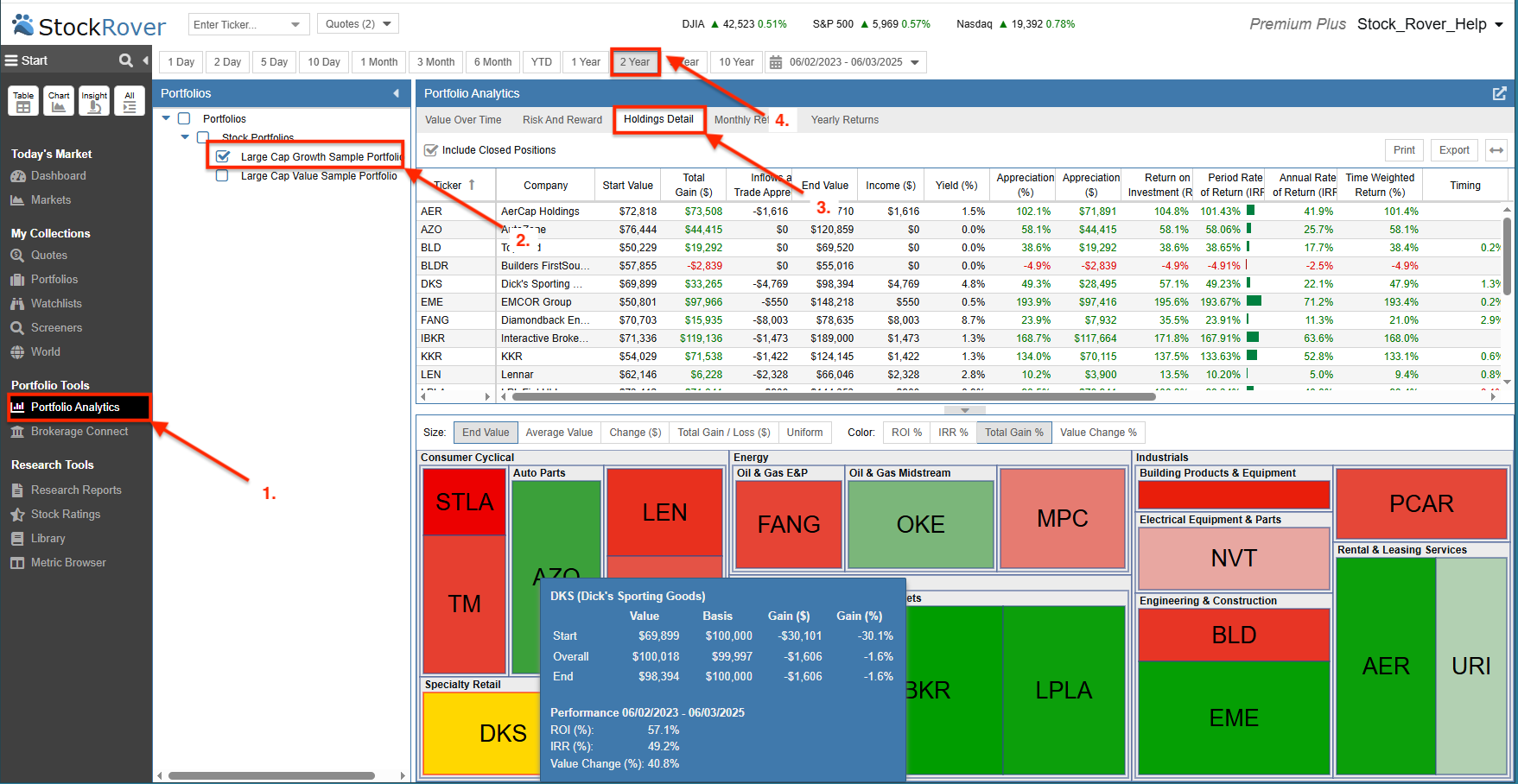
The Portfolio Analytics tool provides a deep-dive analysis of your performance and individual holdings. It works for both portfolios linked via Brokerage Connect and those maintained manually.
- Open Analytics – Select Portfolio Analytics from the Portfolio Tools section of the Start Menu.
- Pick Portfolios – Select the portfolio (or group of portfolios) you wish to analyze from the Navigation panel.
- Select Report Tab – Choose one of the five tabs at the top to switch between different analytical views.
- Set Date Range – Enter a specific timeframe to focus the report on a particular historical period.