Using the Trade Evaluator
Introduction
The Trade Evaluator provides a comprehensive way to analyze the performance of your trading activity over time. By using this tool, you can see exactly how your buy and sell decisions influenced your portfolio’s overall performance and determine if your active trading is adding value or detracting from your investment returns.
The Trade Evaluator is versatile, allowing you to examine individual trades, aggregate all activity for a specific ticker, or analyze all transactions within a single portfolio or a collection of portfolios.
The tool is fully configurable, providing data in either Summary or Detail formats. You can also configure the Trade Evaluator to compare your trading results against a specific benchmark for better context.
Summary and Detail View
The Trade Evaluator displays performance data at two distinct levels: the position level and the individual trade level.
Summary View
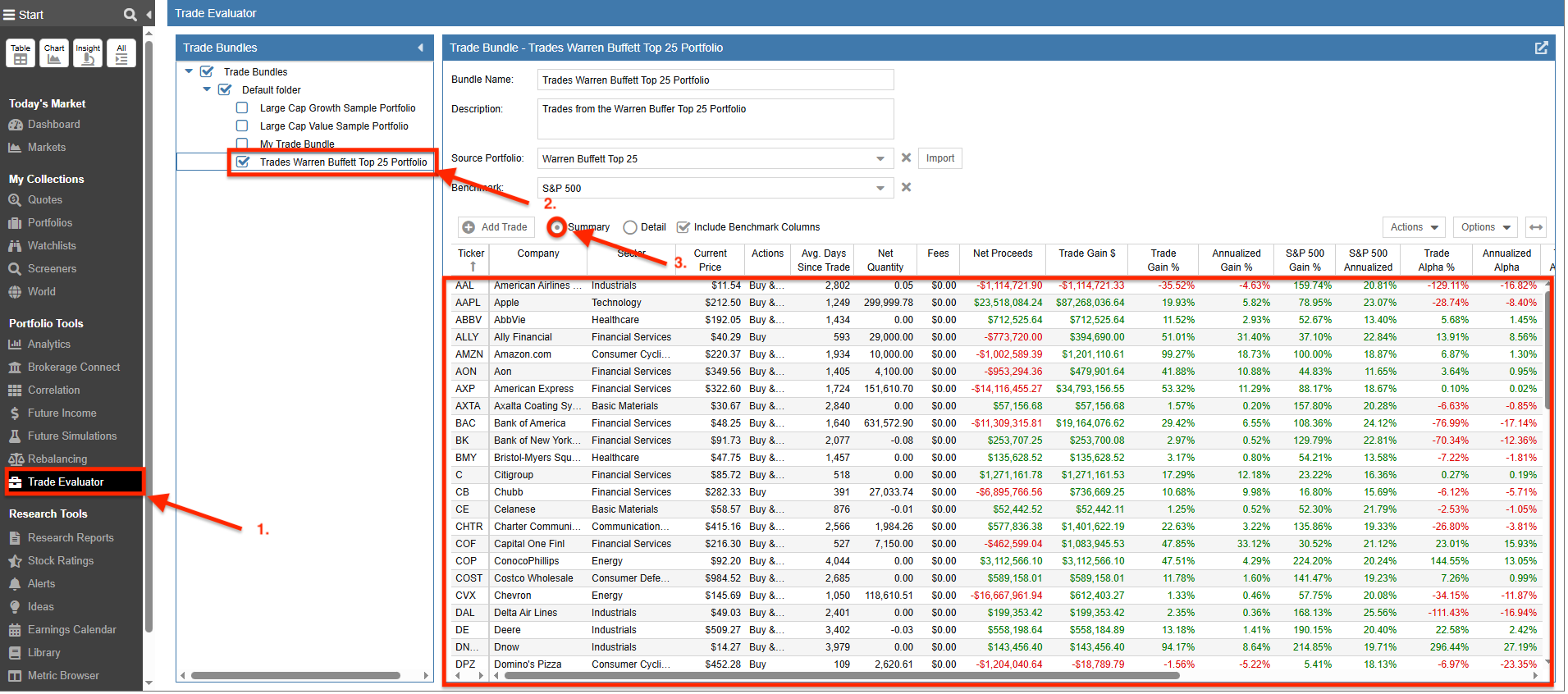
The Summary View shows the performance of your selected Trade Bundle at the position level. In this view, each row represents an aggregate position.
- Select Trade Evaluator from the Start Menu
- Select the Trade Bundle(s) you wish to evaluate
- Select ‘Summary’
Detail View
The Detail View breaks down the performance of your selected Trade Bundle at the trade level. In this view, each row consists of a specific buy or sell transaction.
- Select Trade Evaluator from the Start Menu
- Select the Trade Bundle(s) you wish to evaluate
- Select ‘Detail’

Benchmarking
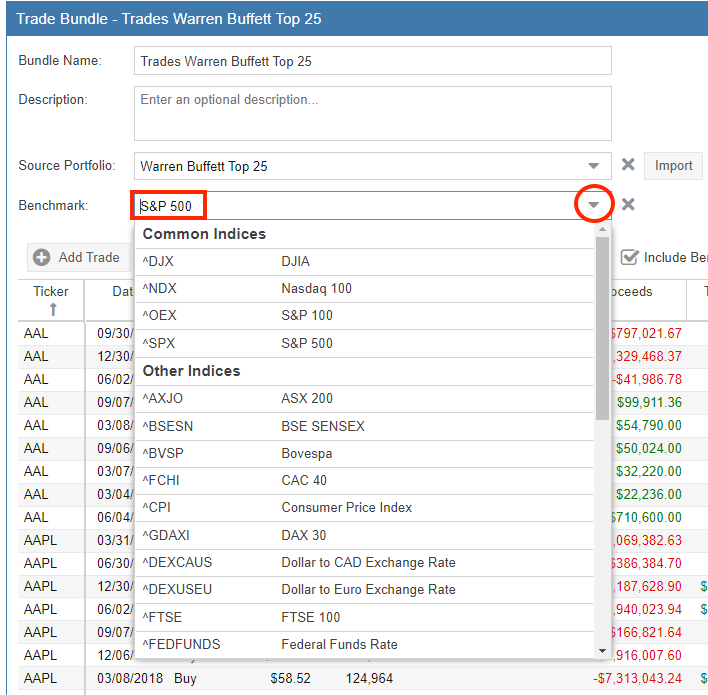
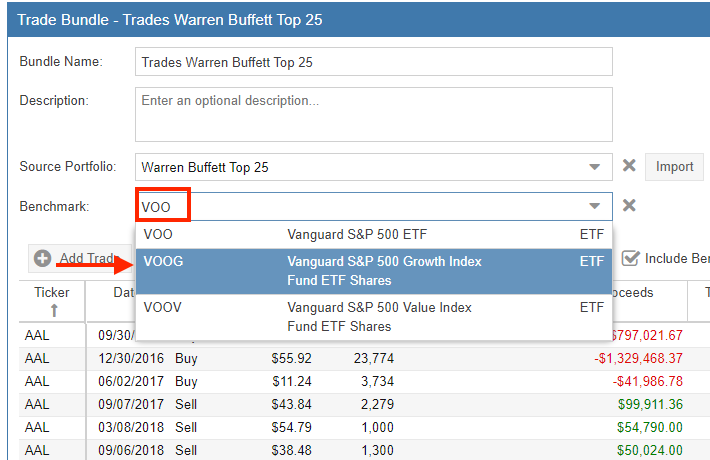
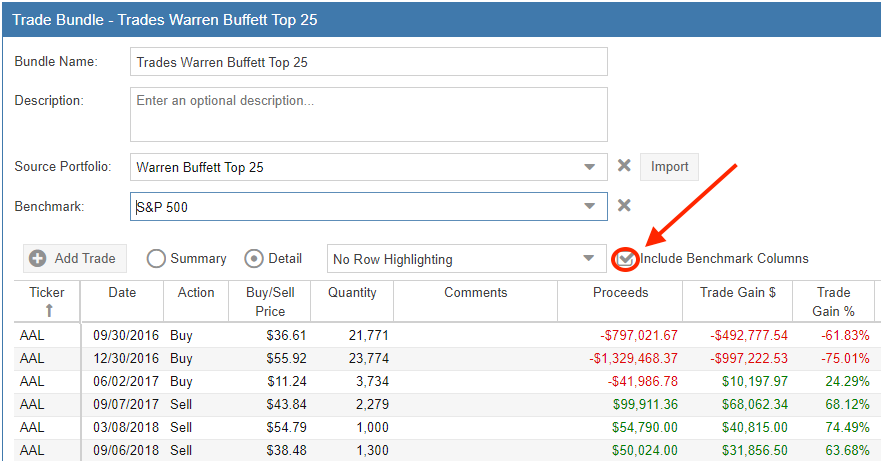
You can configure the Trade Evaluator to show how your trades have performed versus a benchmark. You can either select an Index from the pulldown or enter an ETF or Fund directly.
Select an Index
Enter an ETF or Fund
Include Benchmark Columns – You can toggle whether to display benchmark comparison columns in your table.
Note: When multiple Trade Bundles are selected, the benchmark columns will only display if all selected Trade Bundles are configured to use the same benchmark.
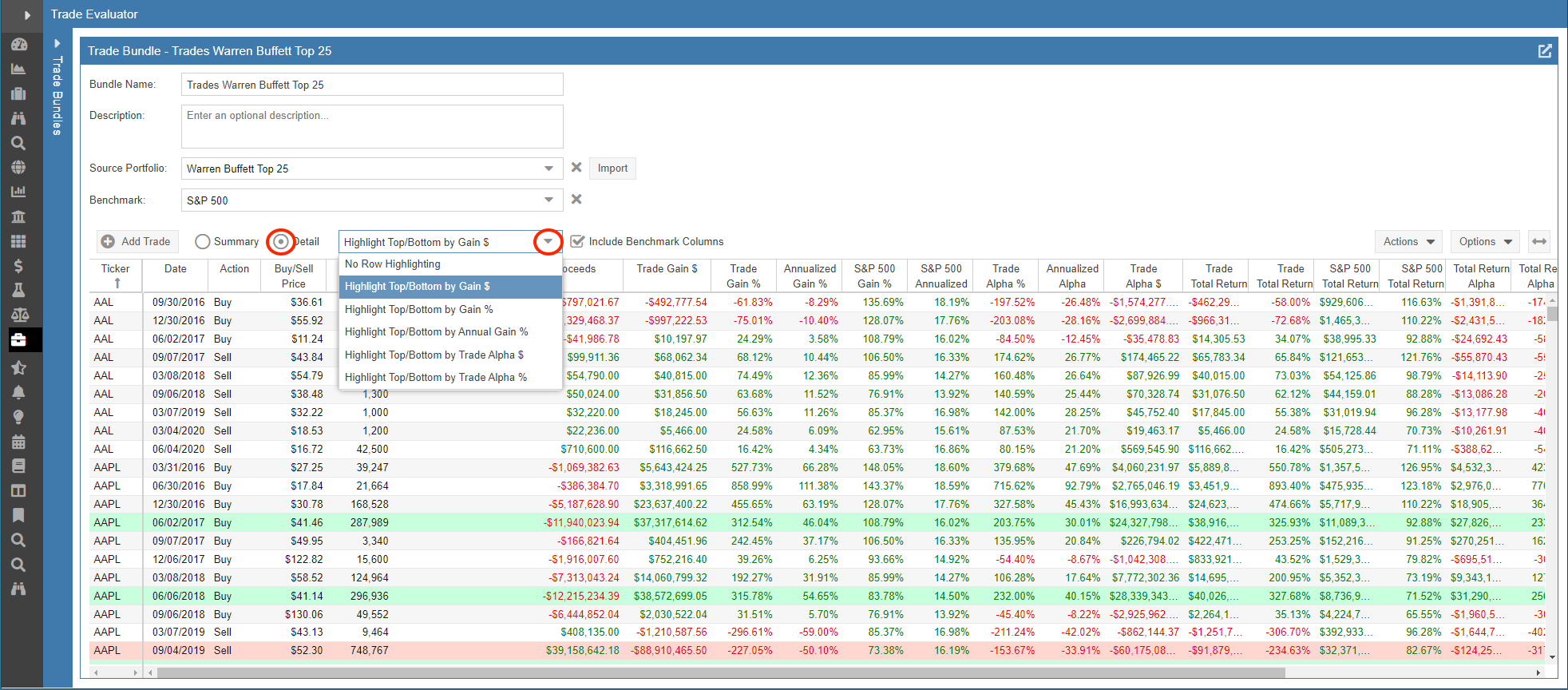
Highlighting Best and Worst Trades
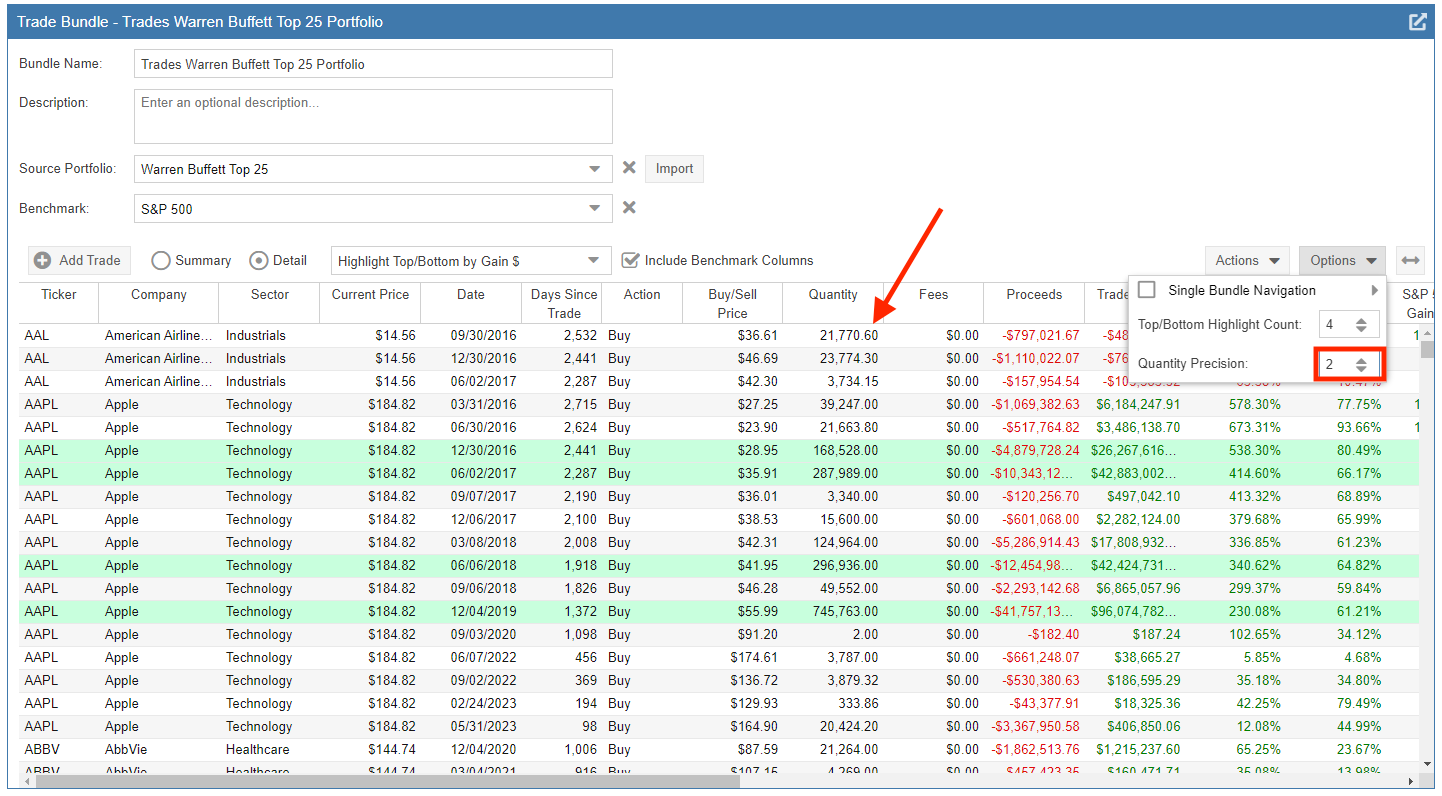
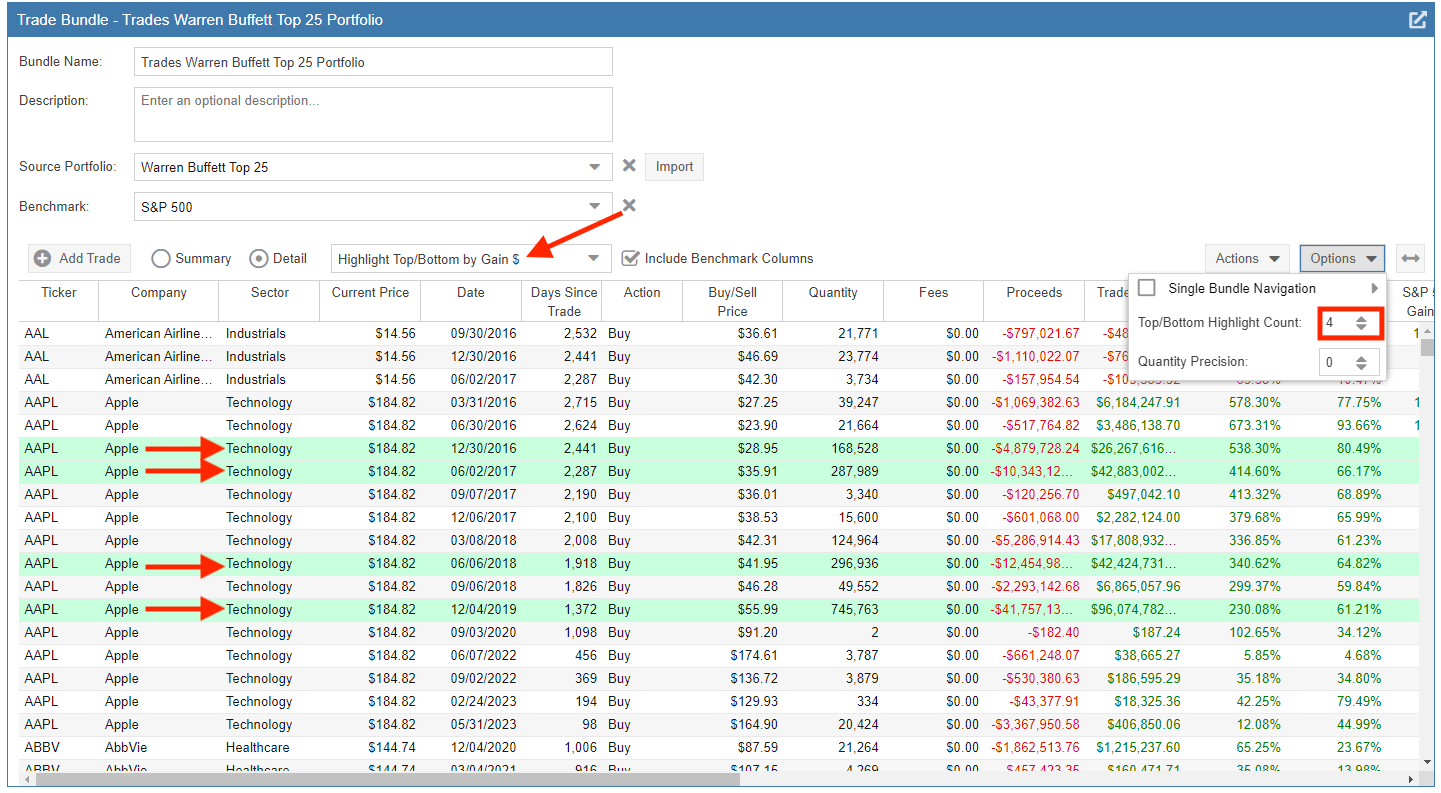
When the ‘Detail’ view is active, you have the option to highlight your best and worst-performing trades. The most successful trades are highlighted in green, while the least successful are highlighted in red.
Additional Table Features
Comment Facility
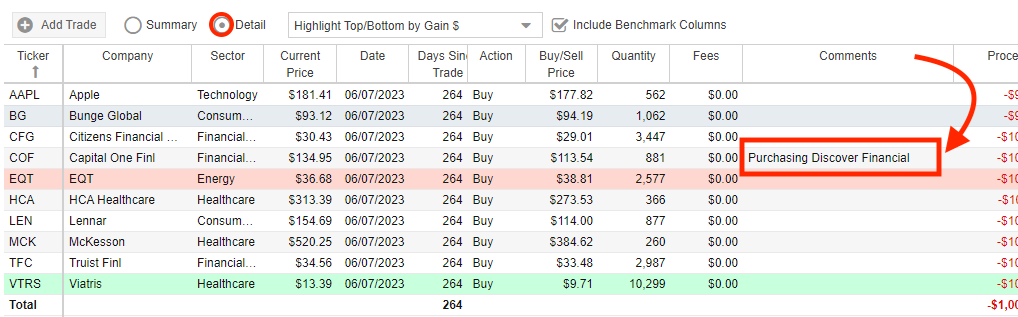
The Detail view allows you to add custom comments to your trades. Comments are tracked and saved at the individual trade level, allowing you to record the rationale behind a specific transaction. Simply type your text directly into the Comments column.
Column Options
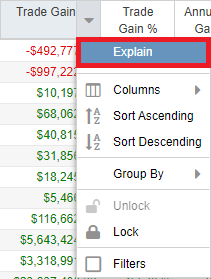
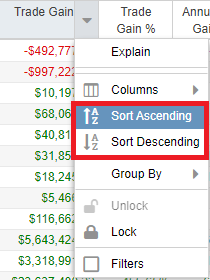
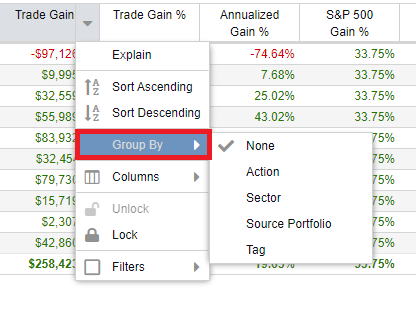
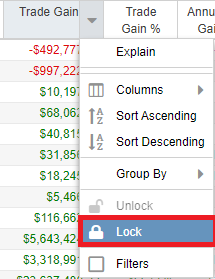
Right-clicking any column header reveals several useful table features:
- Explain: Displays a popup with a clear definition of the selected column metric.
- Sort: Organizes the table data based on the values in the selected column.
- Group By: Groups the table data by specific categories, such as trade type (buy/sell), sector, source portfolio, or custom tags.
- Lock: Pins a column to the left to prevent it from scrolling out of view while you explore other metrics.
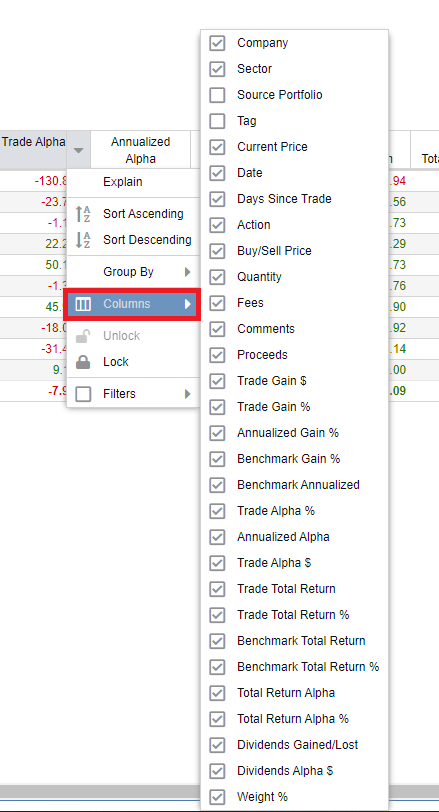
- Columns: Allows you to customize which data points are visible in the table.
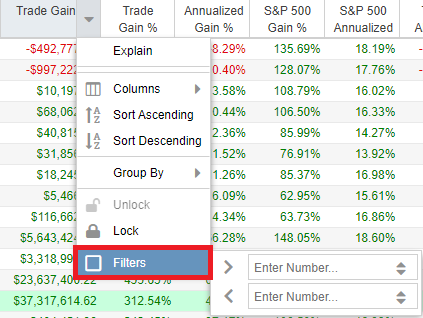
- Filter: Enables you to filter the entire table based on specific criteria within that column.
Trade Evaluator Options
You can customize your navigation and display preferences under the ‘Options’ menu.
Single Bundle Navigation
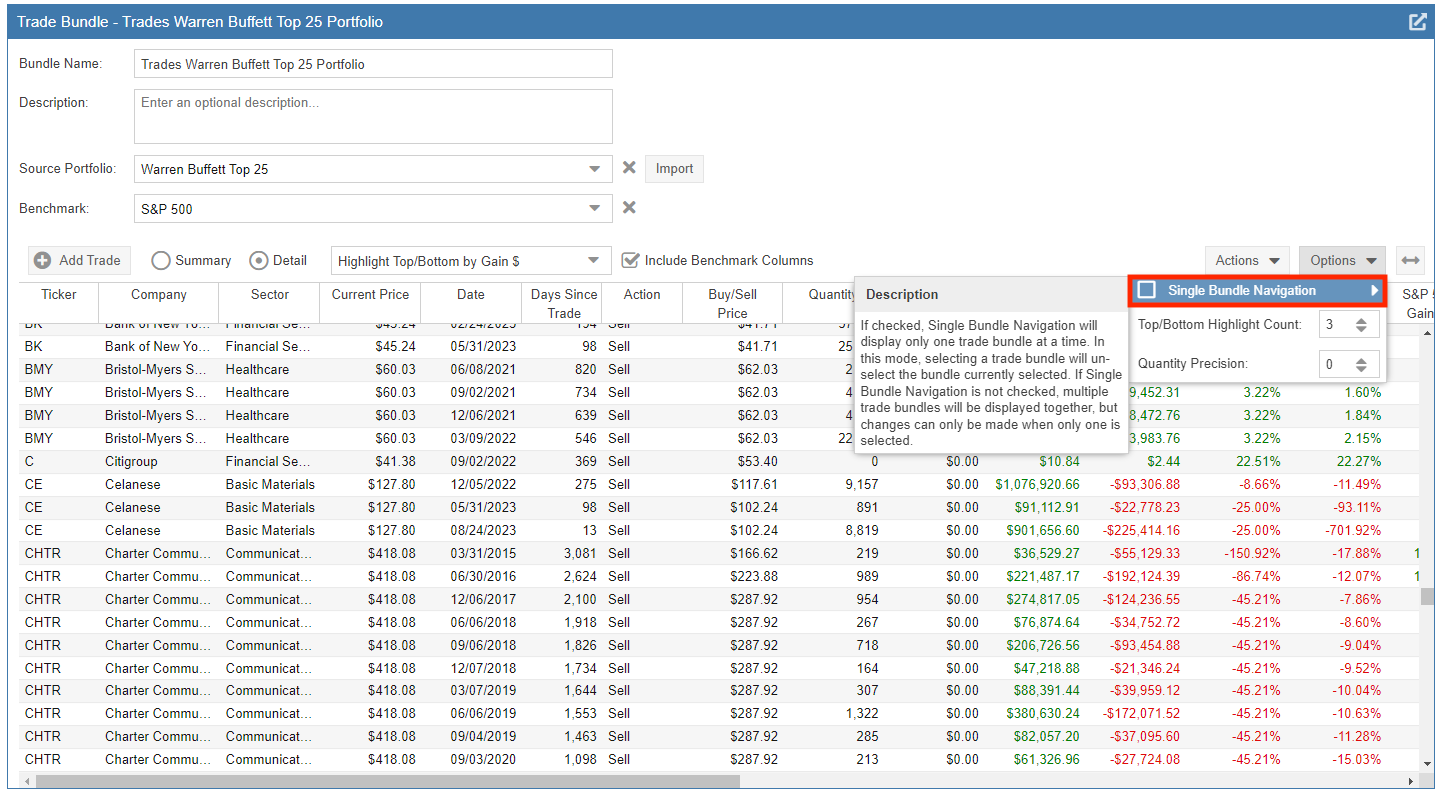
When checked, Single Bundle Navigation ensures that only one trade bundle is displayed at a time. Selecting a new bundle will automatically deselect the previous one, allowing for faster navigation when focusing on one specific bundle. If unchecked, you can select and display multiple trade bundles simultaneously.
Top/Bottom Highlight Count
This setting allows you to configure exactly how many “best” and “worst” trades are highlighted when the best/worst highlighting feature is enabled.
Quantity Precision
This option configures the number of decimal places shown in the Quantity column to suit your reporting preferences.