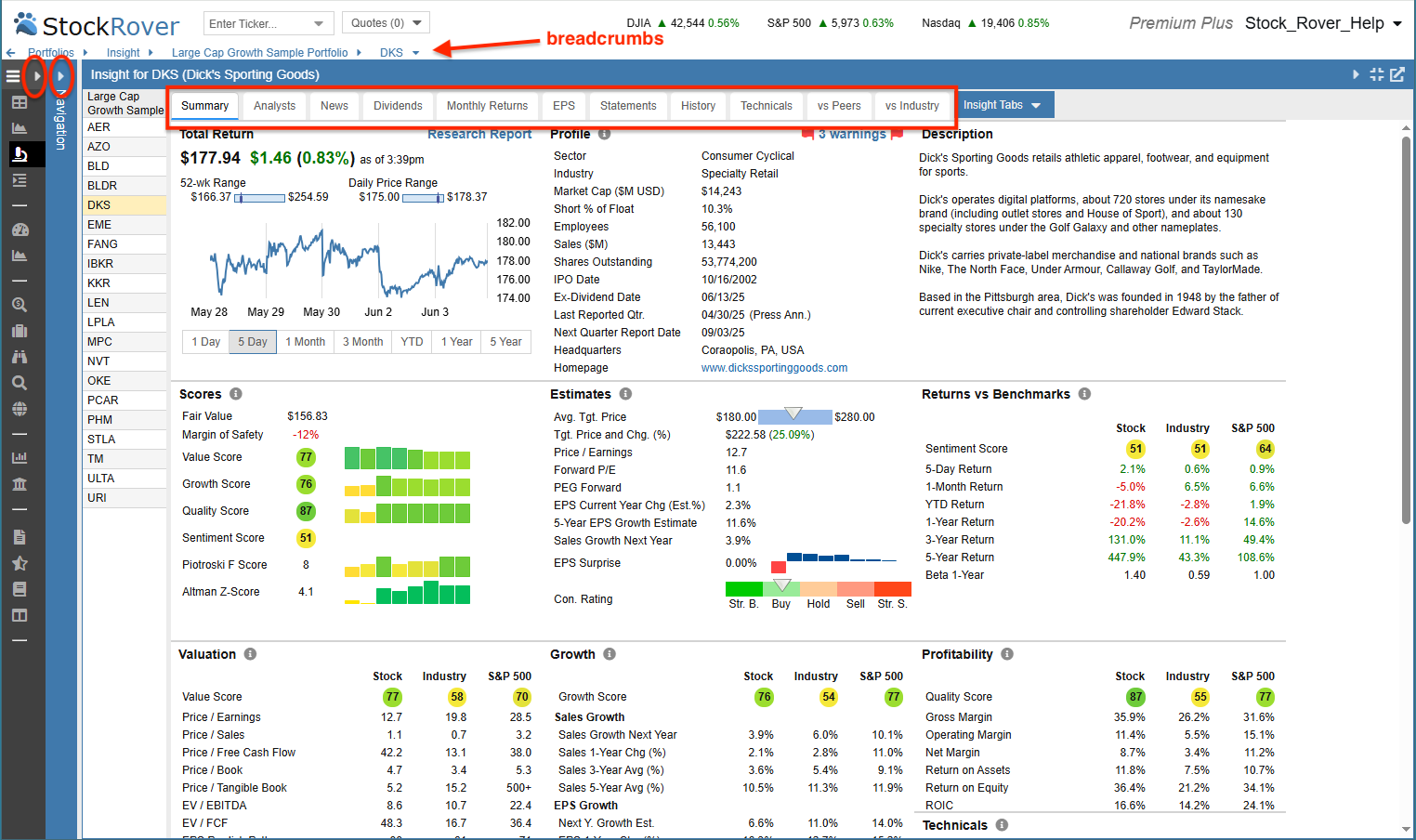
Navigation
My Collections
My Collections is your primary workspace for analyzing individual tickers or groups of securities.
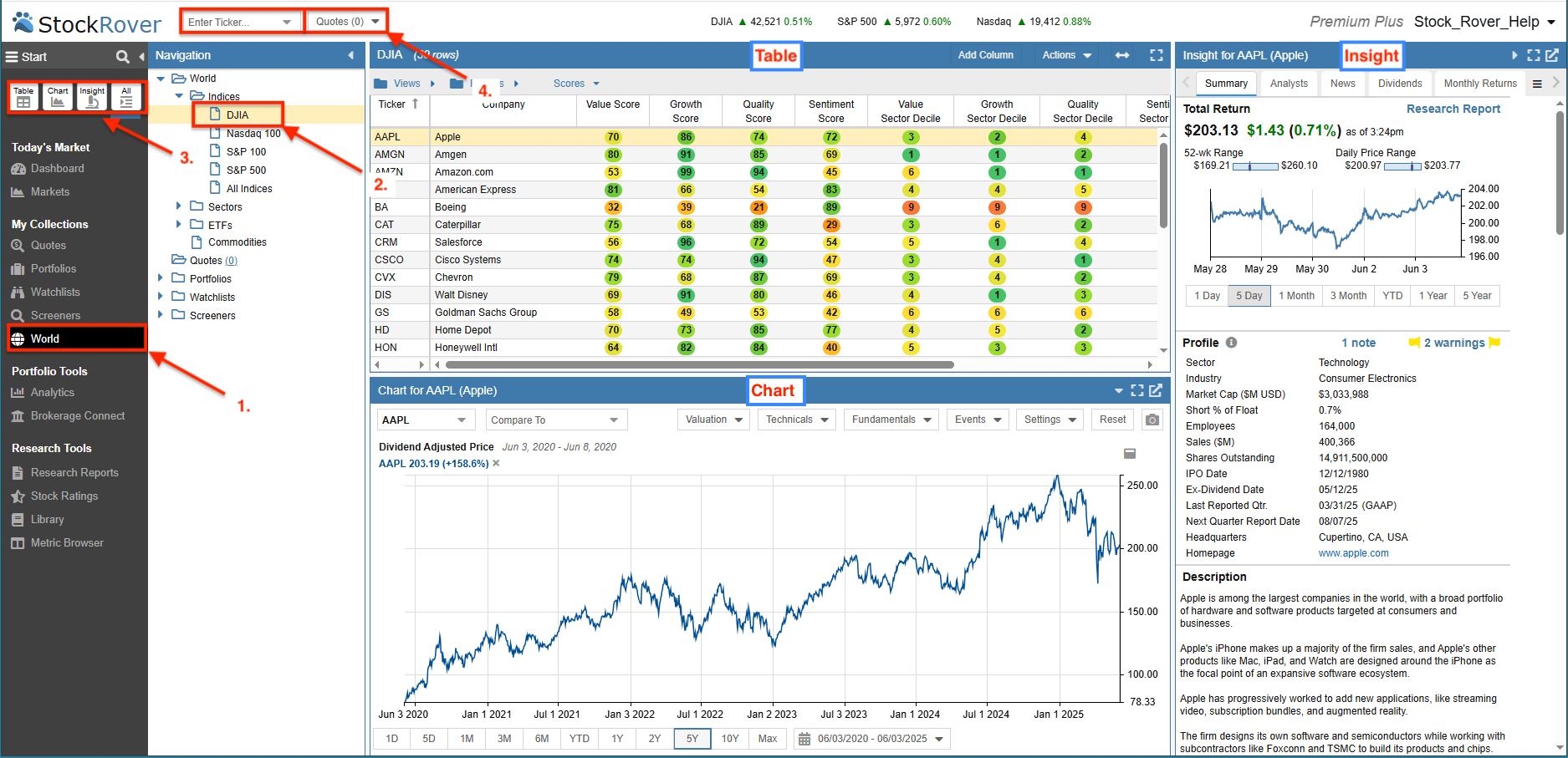
- Select Your Universe: Choose the dataset you wish to research from the menu, including your Portfolios, Watchlists, and Screeners, or the World section for global indices, sectors, and ETFs.
- Navigate the List: Once a collection is selected, the Navigation panel populates with specific groups. For example, selecting World allows you to drill down into the DJIA or S&P 500 to view all constituent tickers.
- Configure Your Layout: Use the Layouts buttons to customize your workspace. You can toggle between the Table for data comparison, the Chart Chart for visual trends, and the Insight Panel for deep company analysis — or display all three simultaneously for a comprehensive view.
- Ad-Hoc Research: Use the Enter Ticker box above the Navigation panel to instantly research symbols that aren’t currently in your collections. Any tickers entered here are automatically added to your Quotes list for easy access.
Researching a Portfolio
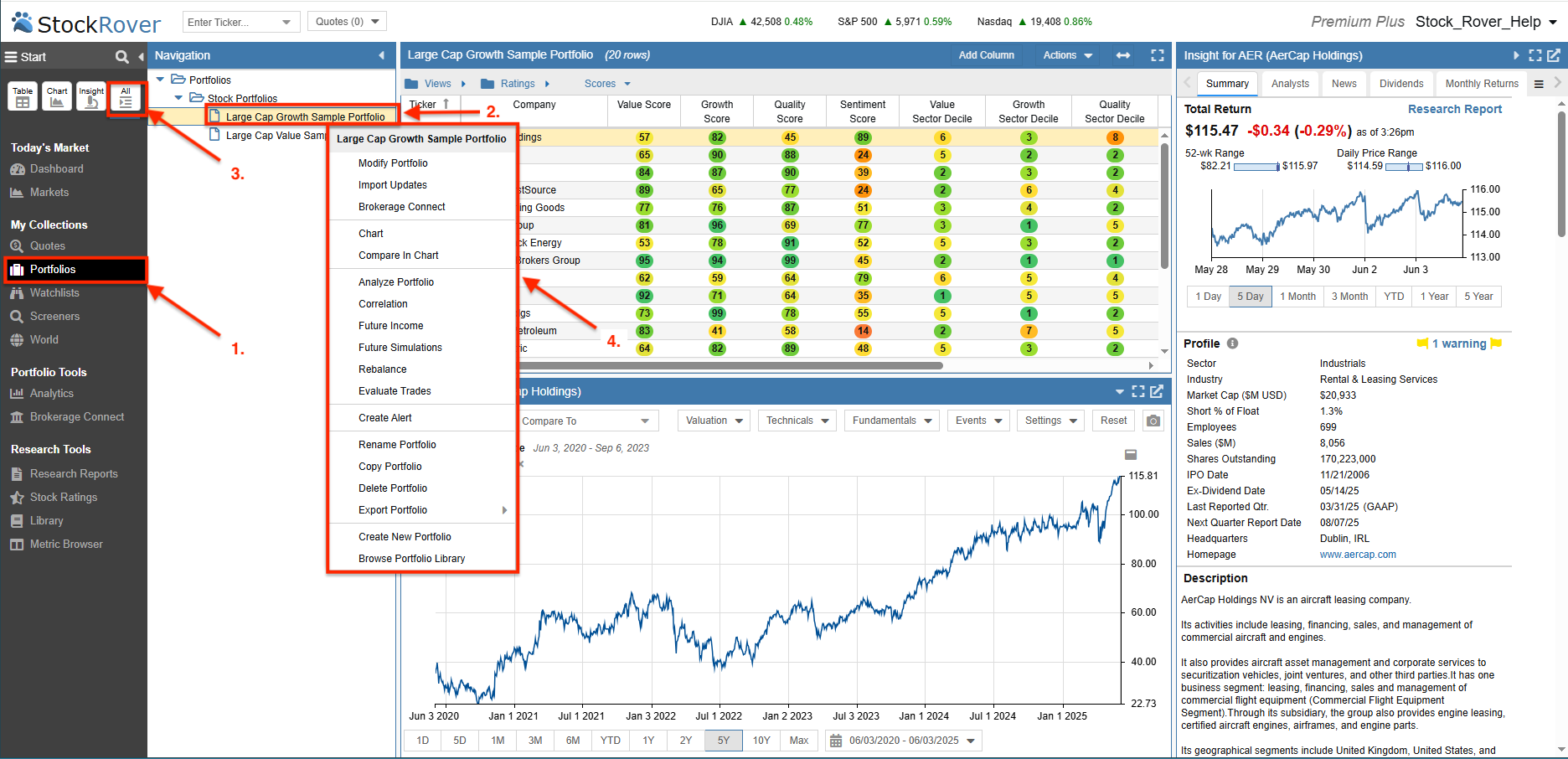
In this example, we are using the My Collections area to research the specific tickers that comprise an investment portfolio.
- Select Portfolios: Under the My Collections menu, select Portfolios to access your personal investment datasets.
- Navigation panel: The panel populates with your available portfolios. In this view, the Large Cap Growth Sample Portfolio is selected, which automatically loads its holdings into the research area.
- All Layouts: This toggle tells Stock Rover to display the research results using the Table, Chart, and Insight Panel simultaneously for a comprehensive, multi-perspective view of the portfolio.
- Right-Click Menu: Right-clicking any item in the Navigation panel opens a context-sensitive menu, providing quick access to commonly used tools and functions.
Layouts
Layouts determine how your research results are organized and displayed within Stock Rover. The workspace consists of three primary panels: the Table, which provides a flexible, spreadsheet-like view for comparing data; the Chart, where you can visualize price, technical indicators, and over 100 fundamental metrics; and the Insight Panel, which contains comprehensive tools for in-depth ticker research.
When multiple panels are visible, selecting a ticker in the Table automatically updates both the Chart and the Insight Panel with data for that specific security.
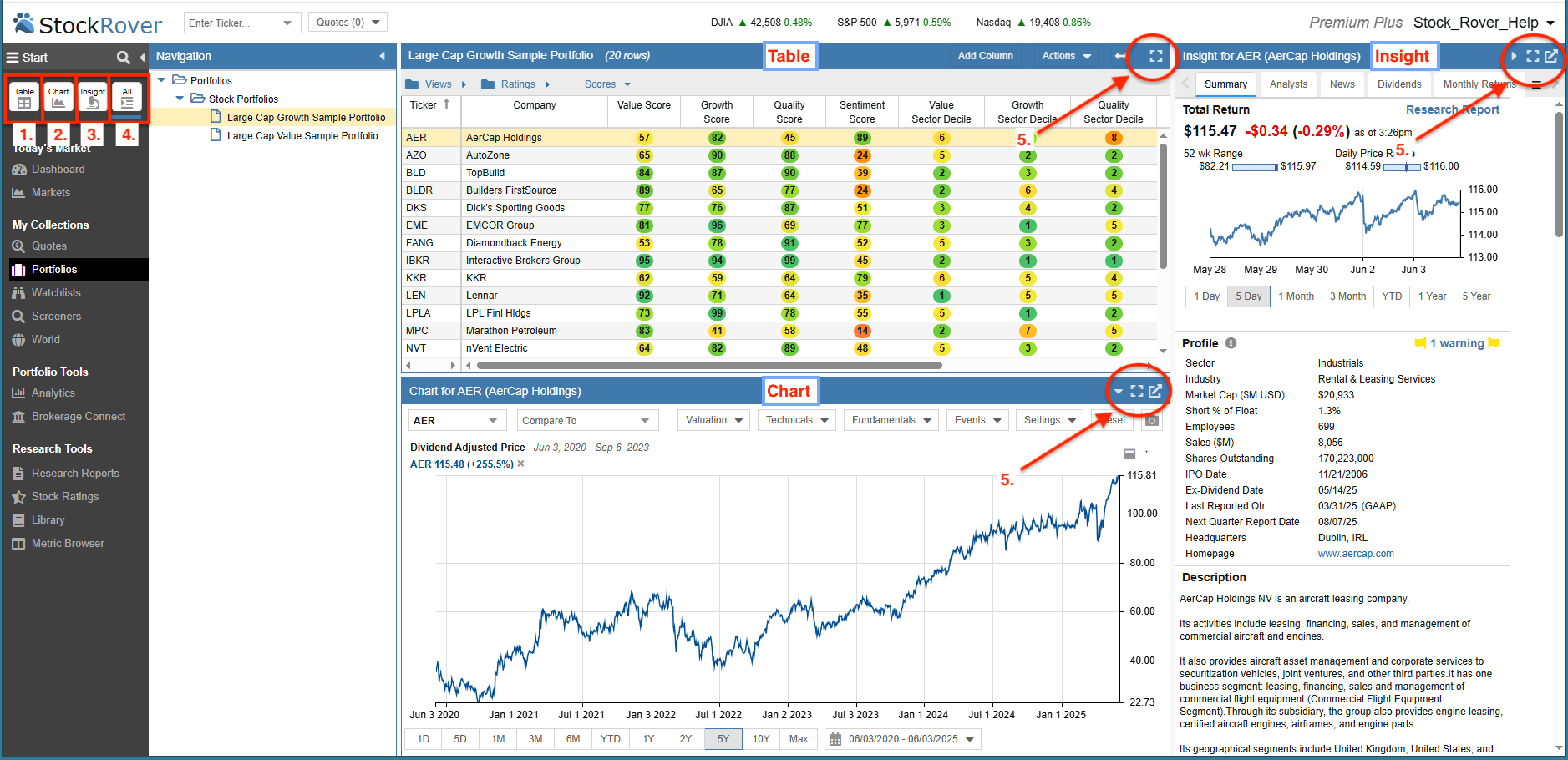
The following layout options are configured via the icons located at the top of the Start Menu:
- Table – Displays only the Table for a data-centric view.
- Chart – Displays only the Chart for a focused visual analysis.
- Insight Panel – Displays only the Insight Panel for deep company research.
- All – Displays the Table, Chart, and Insight Panel together in a single, comprehensive view.
- Panel Controls – Use these icons to collapse, expand, or detach a specific layout into a separate browser window for a multi-monitor setup.
The Table
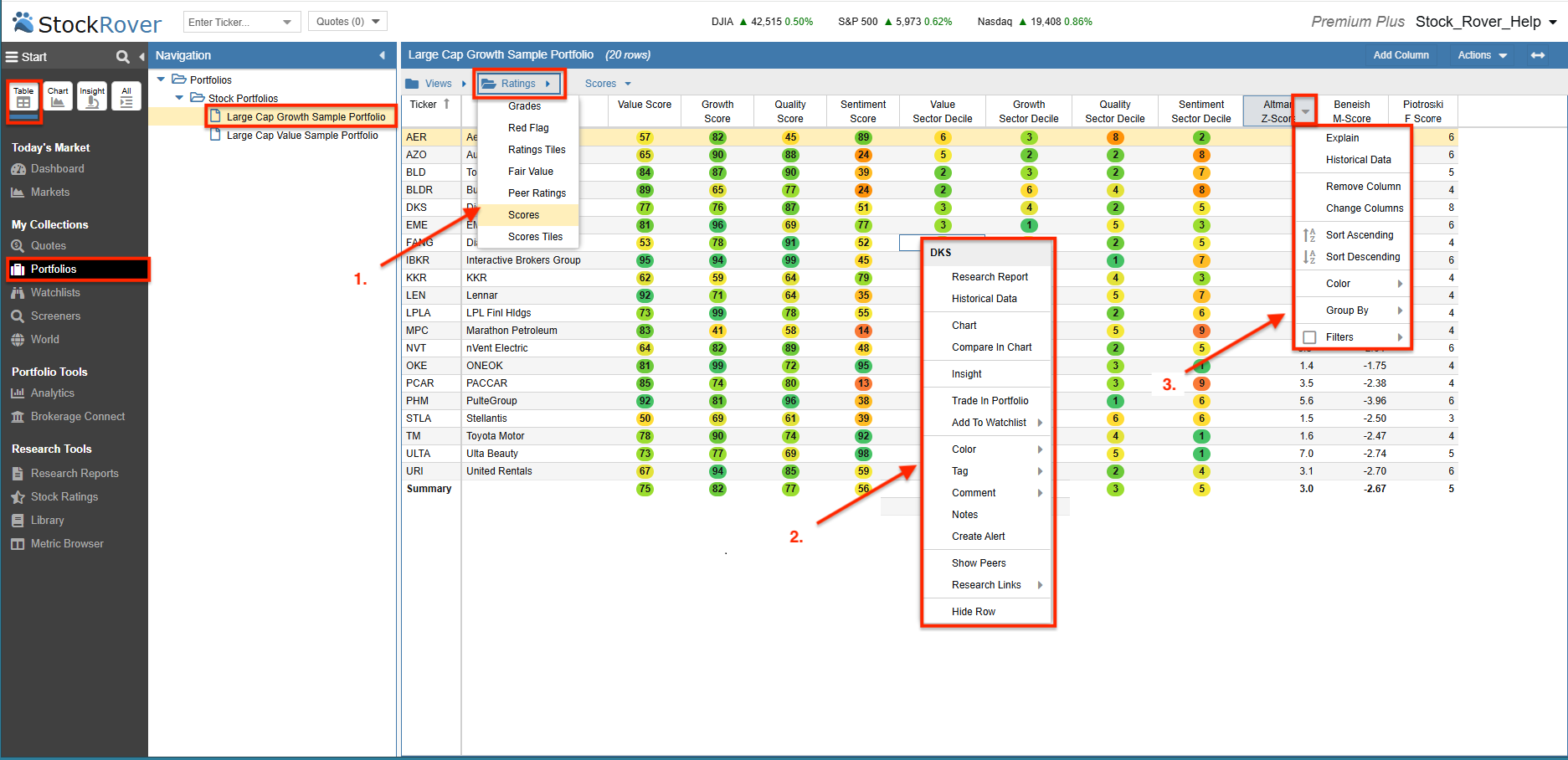
The Table is populated based on your selection in the Navigation panel. In this example, the Table rows display the 10 tickers that comprise the “Large Cap Growth Sample Portfolio,” allowing you to compare investment opportunities across multiple dimensions of financial, operational, and price performance. It utilizes a spreadsheet-like paradigm to organize and present specialized financial data efficiently.
The following features allow you to navigate and refine this data:
- Views and Folders: The Table is comprised of Views, which are logically organized into folders similar to spreadsheet workbooks. Each View displays a unique set of metrics as columns; here, the “Scores” view from the Ratings folder is selected to prioritize proprietary grading.
- Row Options: You can refine the data display or perform specific ticker actions by right-clicking on any row to access the row-level context menu.
- Column Options: Right-clicking on a column header provides options to sort, filter, or modify the specific metrics being displayed in your current View.
Tile Views
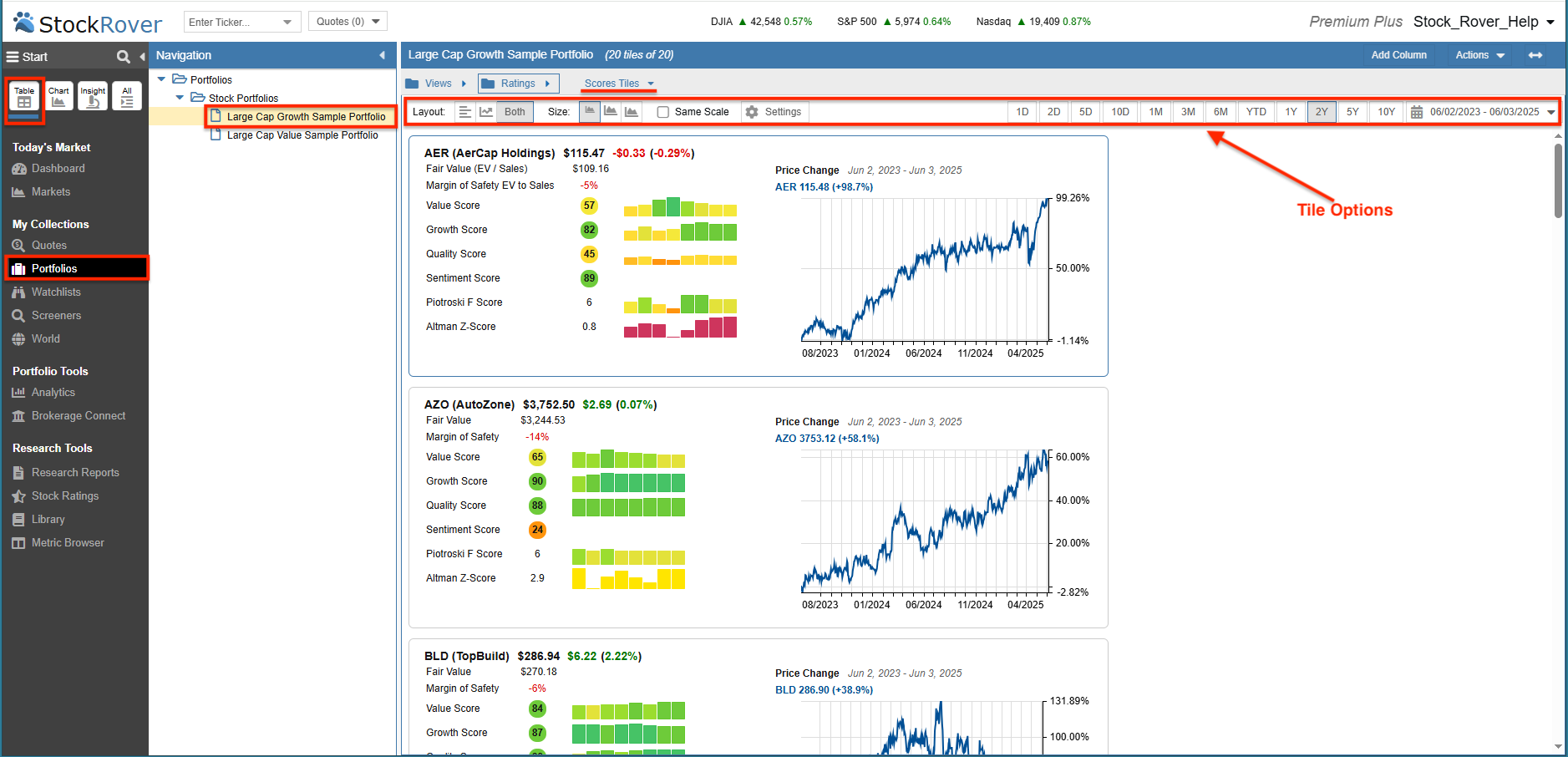
The Table can also be configured to display Tile Views, which present tabular and graphical data together in a card-style format. In this example, the “Scores Tiles” view is selected, displaying both proprietary Scoring metrics and a historical chart for each ticker in your list.
The Tile View toolbar allows you to quickly adjust your workspace through three primary controls:
- Layout & Content – Choose whether to display tabular data, chart data, or both, and use the (⚙️) Settings menu to customize the specific metrics and data points shown within each individual card.
- Sizing & Same Scale – Use the three sizing icons to adjust the footprint of the cards and toggle Same Scale to standardize the vertical axis across all tickers. This enables a direct visual comparison of relative magnitude and volatility between different tickers.
- Timeline – Adjust the historical timeframe to analyze price, fundamental, and technical data.
Chart
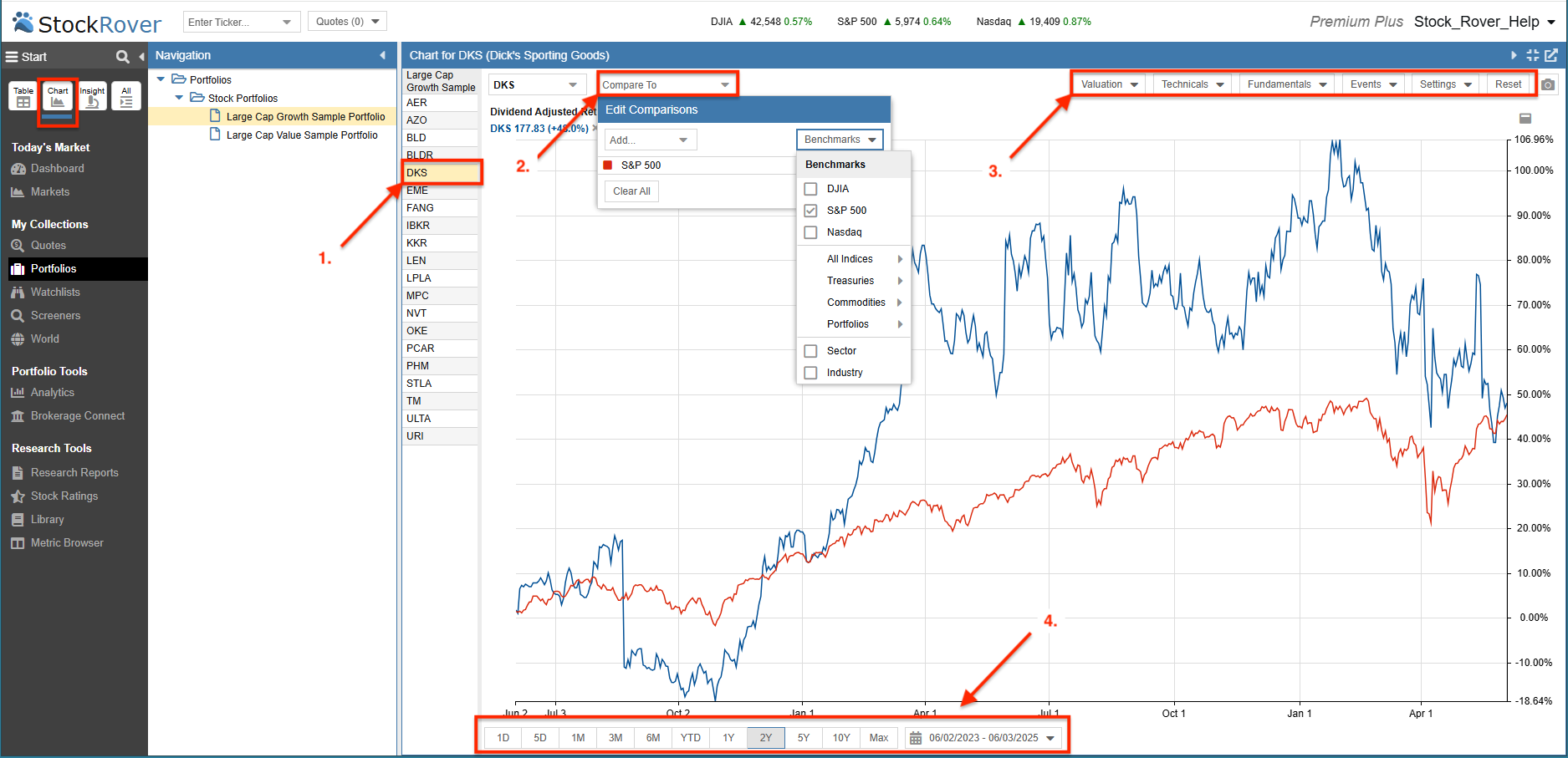
The Chart gives you a precise way to track price moves and returns, technical indicators, and over 100 fundamental metrics. You can use it to compare how different stocks move against one another or to see the combined performance of entire Portfolios, Screeners, and Watchlists.
The Chart is designed to work dynamically with your research flow:
- Table Integration – Selecting a row in the Table automatically updates the Chart with that ticker’s data. For example, selecting GOOGL from the Table immediately shows its historical performance here.
- Comparative Analysis – You can add more tickers or benchmarks to the current chart. This makes it easy to see how a stock is performing compared to its peers or the broader market.
- Custom Configuration – Use the configuration menus to pick exactly what you want to see, including technical indicators, fundamental data points, and major corporate events.
- Timeline Controls – Choose from standard date ranges or enter a custom range to focus on a specific period in the market.
Insight
The Insight Panel serves as your primary research hub for deep-dive analysis on a specific security. Selecting a ticker in the Table (e.g., GOOGL) instantly synchronizes the Insight Panel with that company’s data. To maximize your workspace, you can collapse the Start Menu and Navigation panel as shown in the example below.
The Insight Panel is organized into 13 specialized tabs:
- Summary – Provides a snapshot of key company information.
- Analysts – Displays analyst ratings and earnings estimates.
- Options – Shows the full options chain for the selected ticker.
- News – Lists relevant news headlines and updates.
- Dividends – Shows the company’s dividend payment history.
- Monthly Returns – Highlights the seasonality of a stock, ETF, or fund.
- EPS – Tracks sales, earnings per share (EPS), and cash flow trends.
- Statements – Contains detailed financials, including income statements, balance sheets, and cash flow statements.
- Insiders – Tracks company ownership by detailing recent buying and selling activity by officers and directors.
- History – Summarizes the company’s past performance.
- Technicals – Displays key technical indicators and signals.
- vs Peers – Offers side-by-side comparisons with similar companies.
- vs Industry – Presents metrics comparing a stock to its industry and the S&P 500.