Columns
Metric Browser Columns
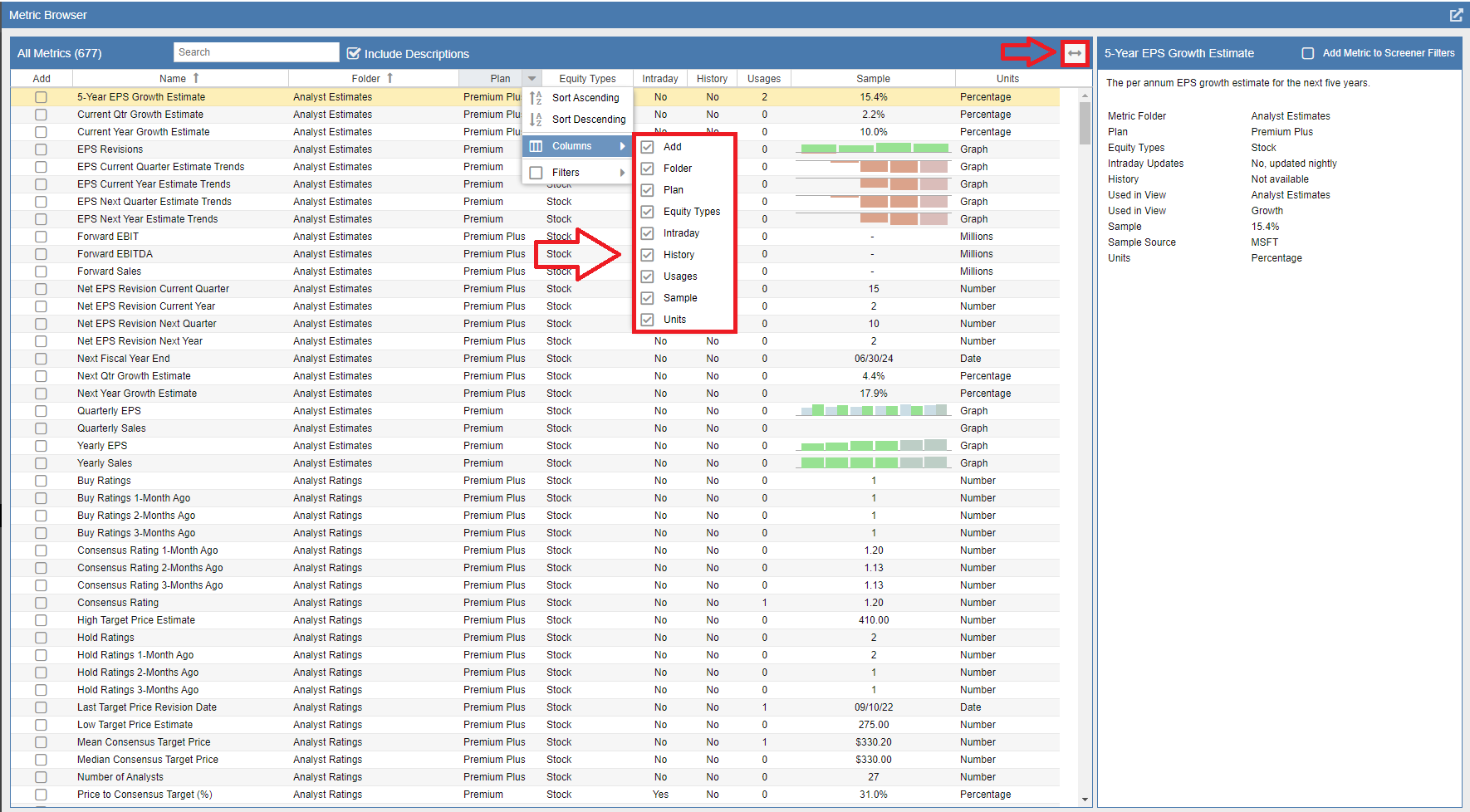
The Metric Browser provides a detailed breakdown of every data point to help you understand exactly what you are analyzing. The interface is organized into several key columns that define the source, availability, and behavior of each metric:
- Name: The official name of the metric.
- Folder: The logical category (e.g., Valuation, Growth) where the metric is housed.
- Plan: The minimum Stock Rover subscription plan (Premium, Premium Plus or Ultimate) required to access the data.
- Intraday: Indicates whether the data updates in real-time during market hours or is calculated nightly.
- History: Shows if the metric supports historical look-back periods for trend analysis.
- Usages: The number of your saved Table Views that currently include this metric.
- Sample: A preview of how the numerical or text data is formatted and displayed.
- Units: The unit of measure (e.g., $, %, or Ratio) for the metric.
- Add: A selectable column that allows you to instantly import the metric into your current Table view.
Pro Tip: If you mouse over a cell in the Usages column that has a value greater than zero, a tooltip will appear listing the specific Views that already contain that metric.
As shown in the screenshot below, the browser is fully customizable. You can add or remove columns to simplify your view or reorder them by dragging and dropping headers to suit your personal research workflow.