Summary Display
Summary Display
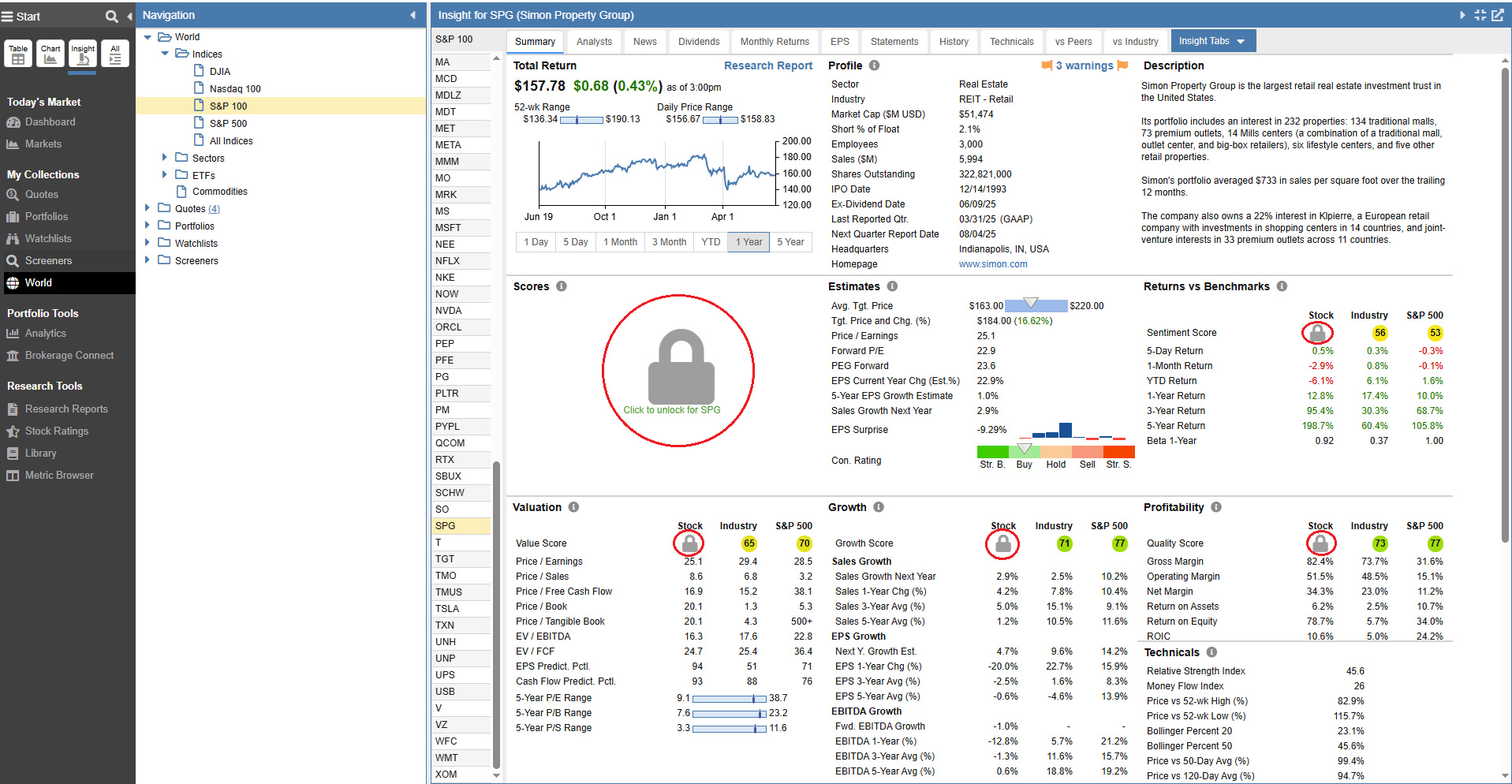
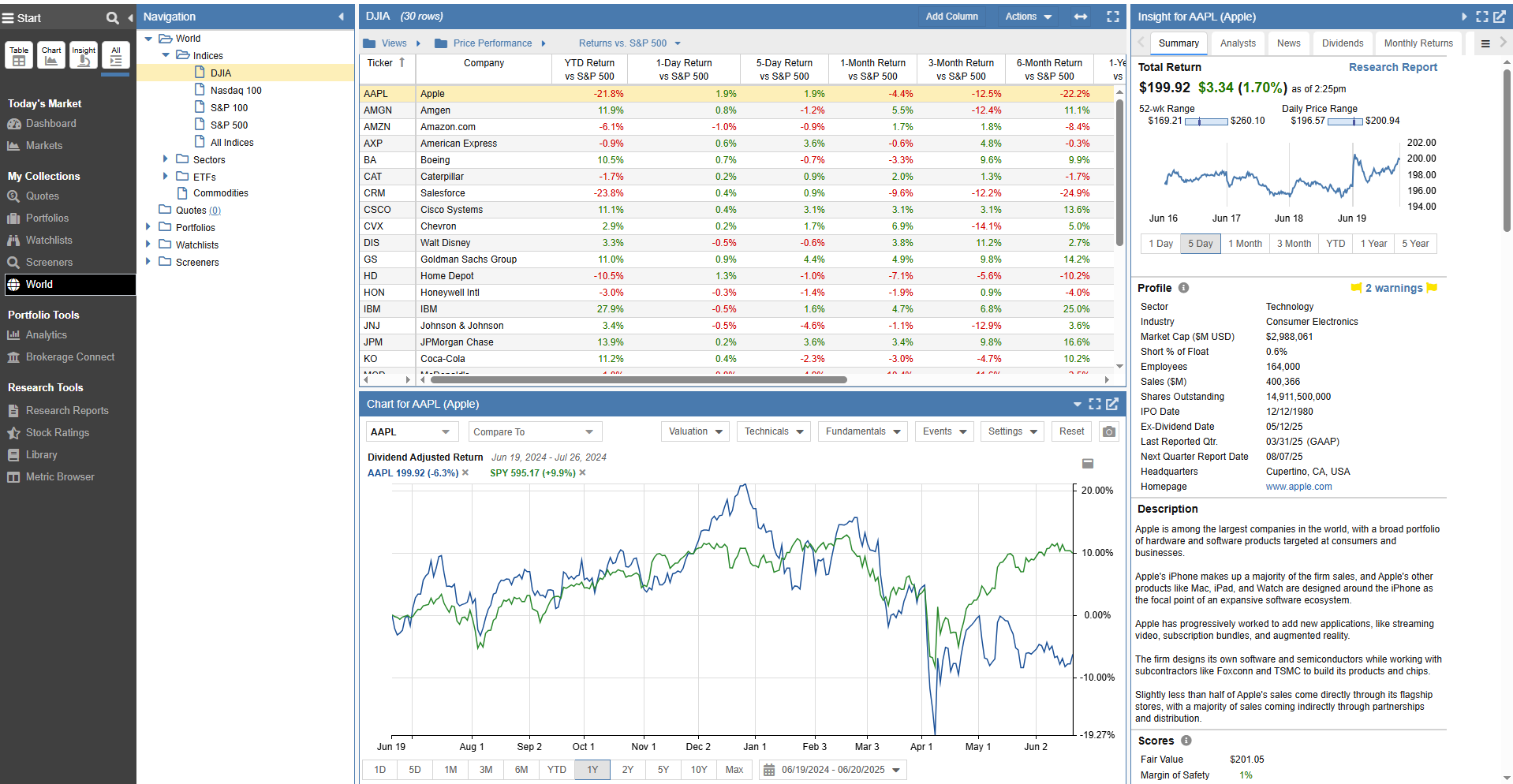
The screenshot below shows the Insight Panel with the “All” layout selected at the top of the Start Menu. With the Summary tab selected, you will see an array of information associated with the active row in the main table. In the example below, a ticker is selected, displaying its related data.
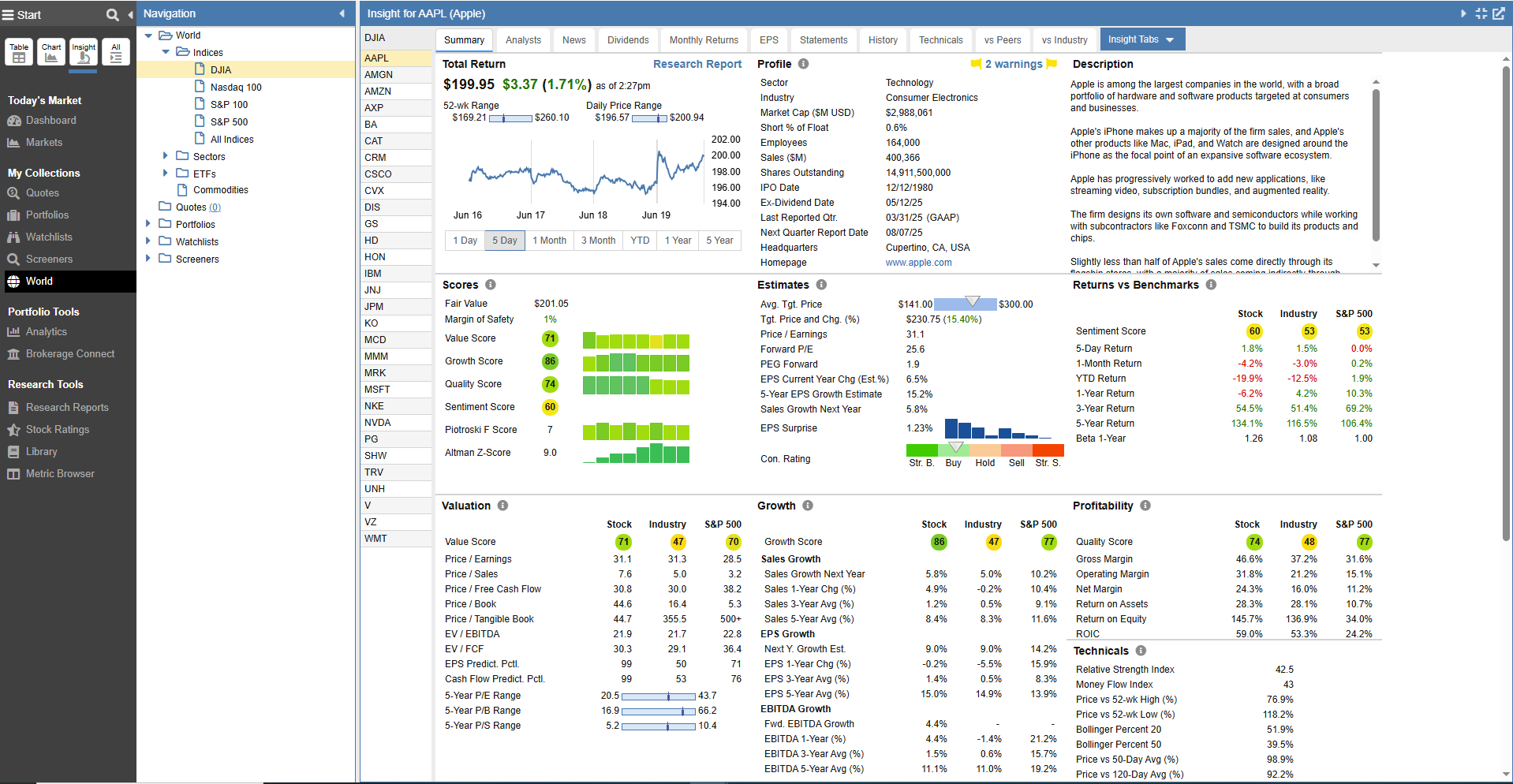
The screenshot below shows the Summary tab with “Insight” selected at the top of the Start Menu. This shows the panel fully expanded, allowing you to view the information about the selected ticker in one large view.
Summary Display with Portfolios Selected
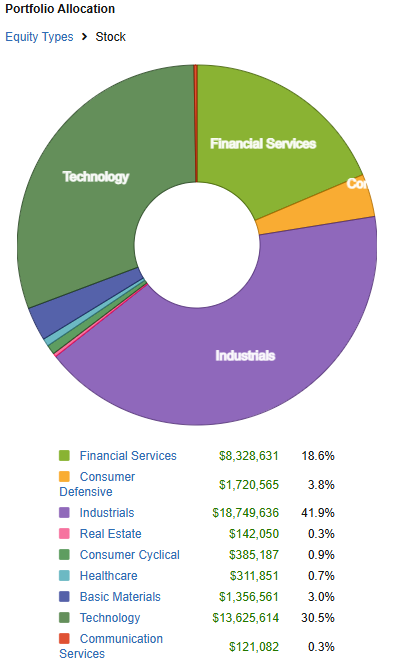
The Insight Panel’s Summary tab displays the top movers and a portfolio allocation pie chart by equity type for the selected portfolio. This is achieved by selecting a portfolio folder in the Navigation panel and then the appropriate portfolio in the Insight Panel. Clicking the Portfolios button in the Insight Panel will show portfolio-level information.
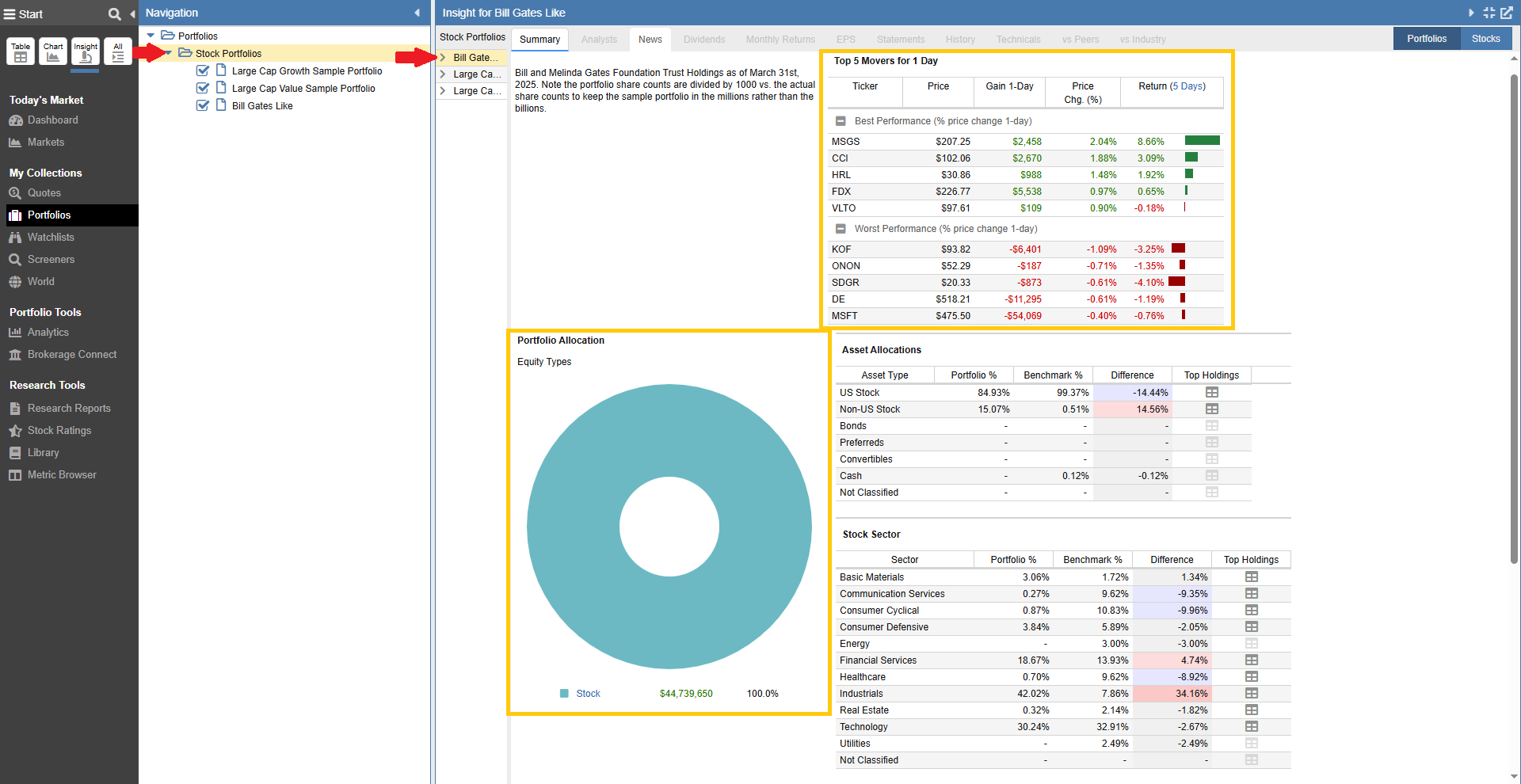
The portfolio allocation allows you to drill down into the stock allocation and see the breakdown by sector, as shown in the screenshot below.
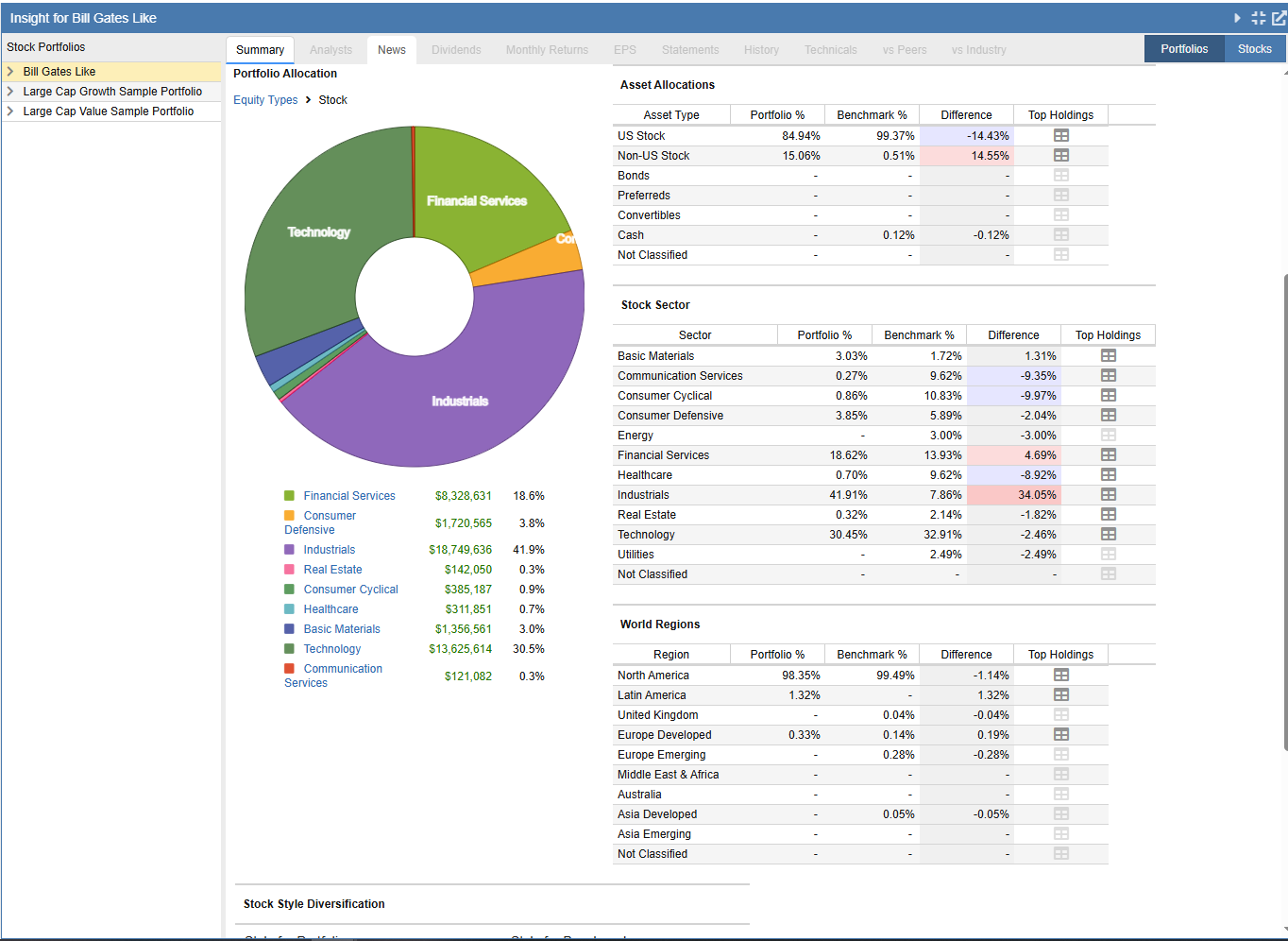
In addition to the pie chart, you can access tables showing the allocations based on Asset, Sector, World Region, and Stock Style Diversification, as shown in the screenshot below.
Research Reports
Research Reports provide a comprehensive summary of any of the 7,000+ stocks we track in Stock Rover on the U.S. and Canadian exchanges. Research reports can be viewed in your browser and produced in PDF format for easy portability and sharing.
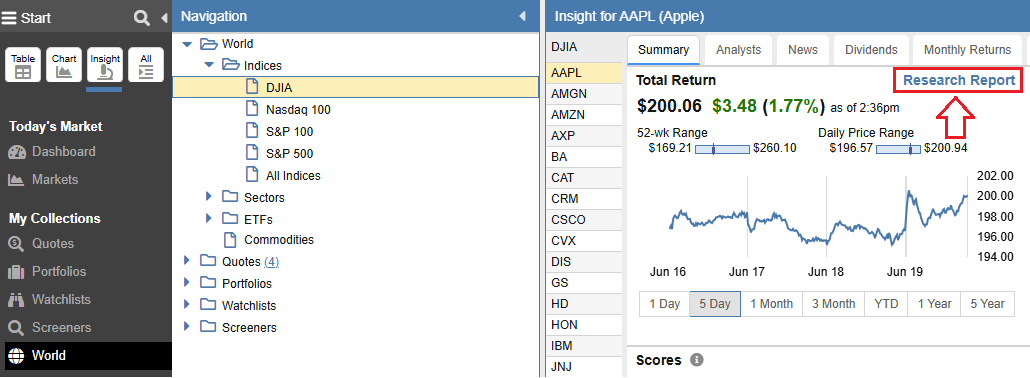
You can generate a report directly from the Insight Panel by clicking the icon indicated by the red arrow below.
Note: More information about Research Reports can be found in our help pages.
Total Return Chart
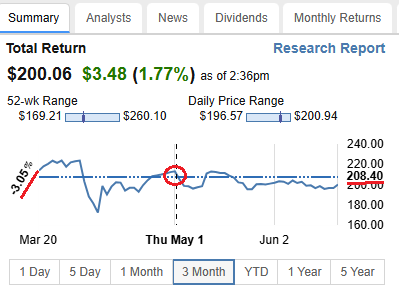
The chart can be configured by time period. Additionally, hovering your mouse over the chart displays crosshairs along with the exact price and price percentage change.
Notes
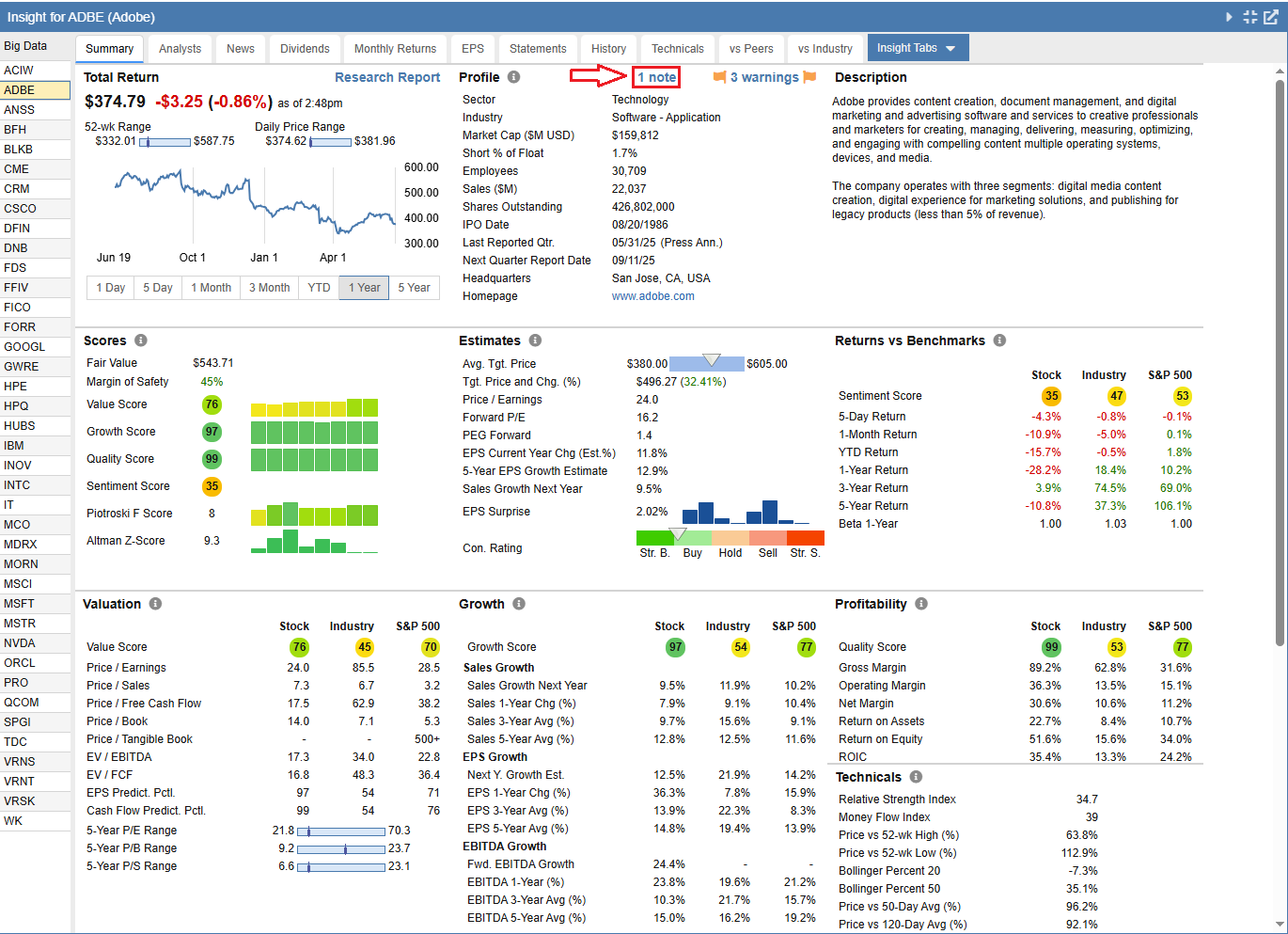
If the selected ticker has any notes associated with it, the number of notes for the ticker will be displayed as shown below. You can view and edit these notes by clicking on the bolded blue text.
For more detailed information, please see our Help section on Notes.
Investor Warnings
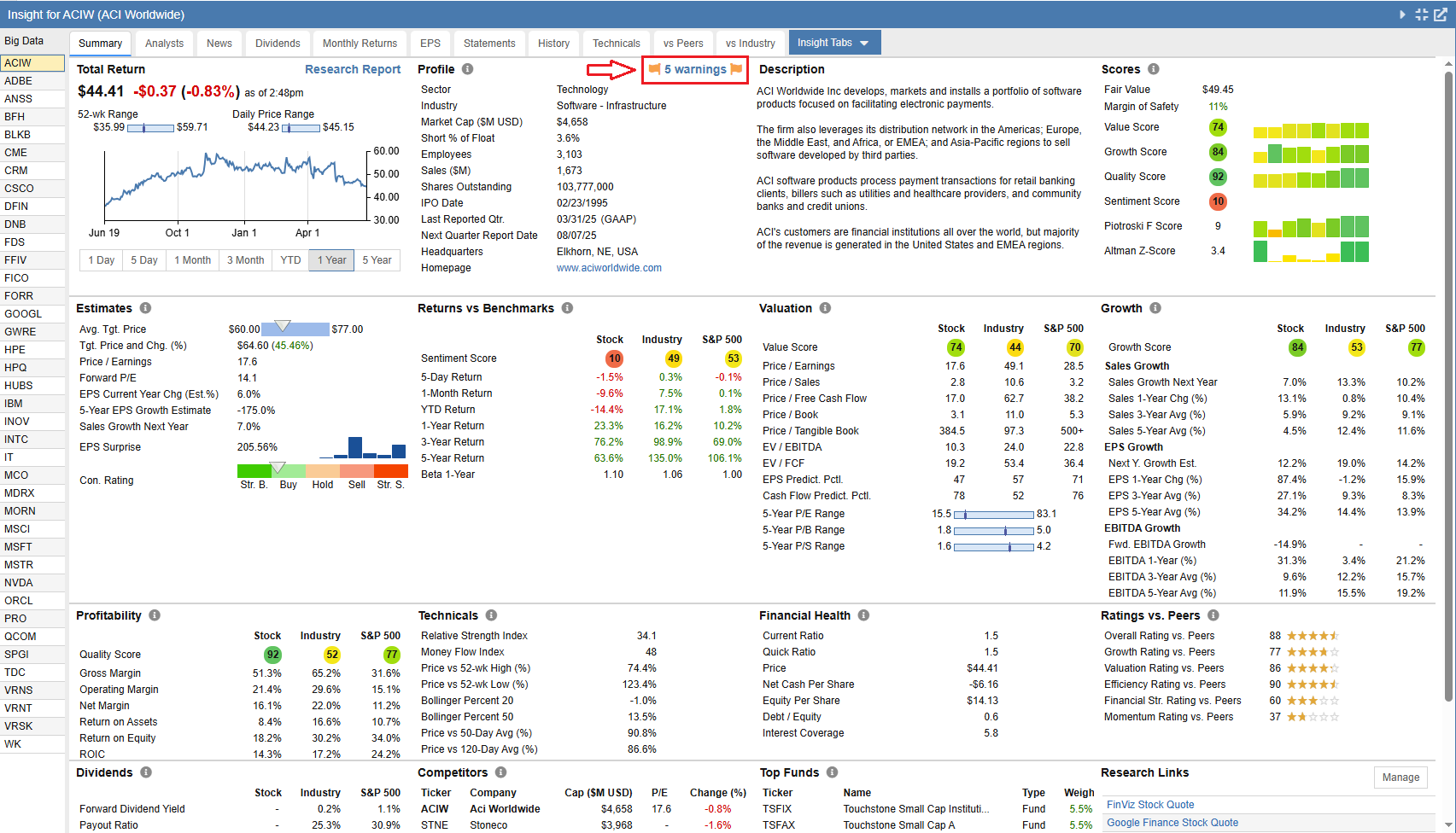
The Investor Warnings facility is designed to alert investors to specific characteristics of a stock that may make it riskier or less desirable. These warnings surface hidden issues that are typically difficult or time-consuming to identify manually. See the screenshot below to locate these warnings.
The link below lists all possible warnings that Stock Rover can issue.
Note: There is a more in-depth discussion of Investor Warnings in our blog post.
Fair Value, Margin of Safety, and Stock Scores
As shown in the screenshot below, the Insight Panel offers Fair Value, Margin of Safety, and proprietary Stock Score metrics.
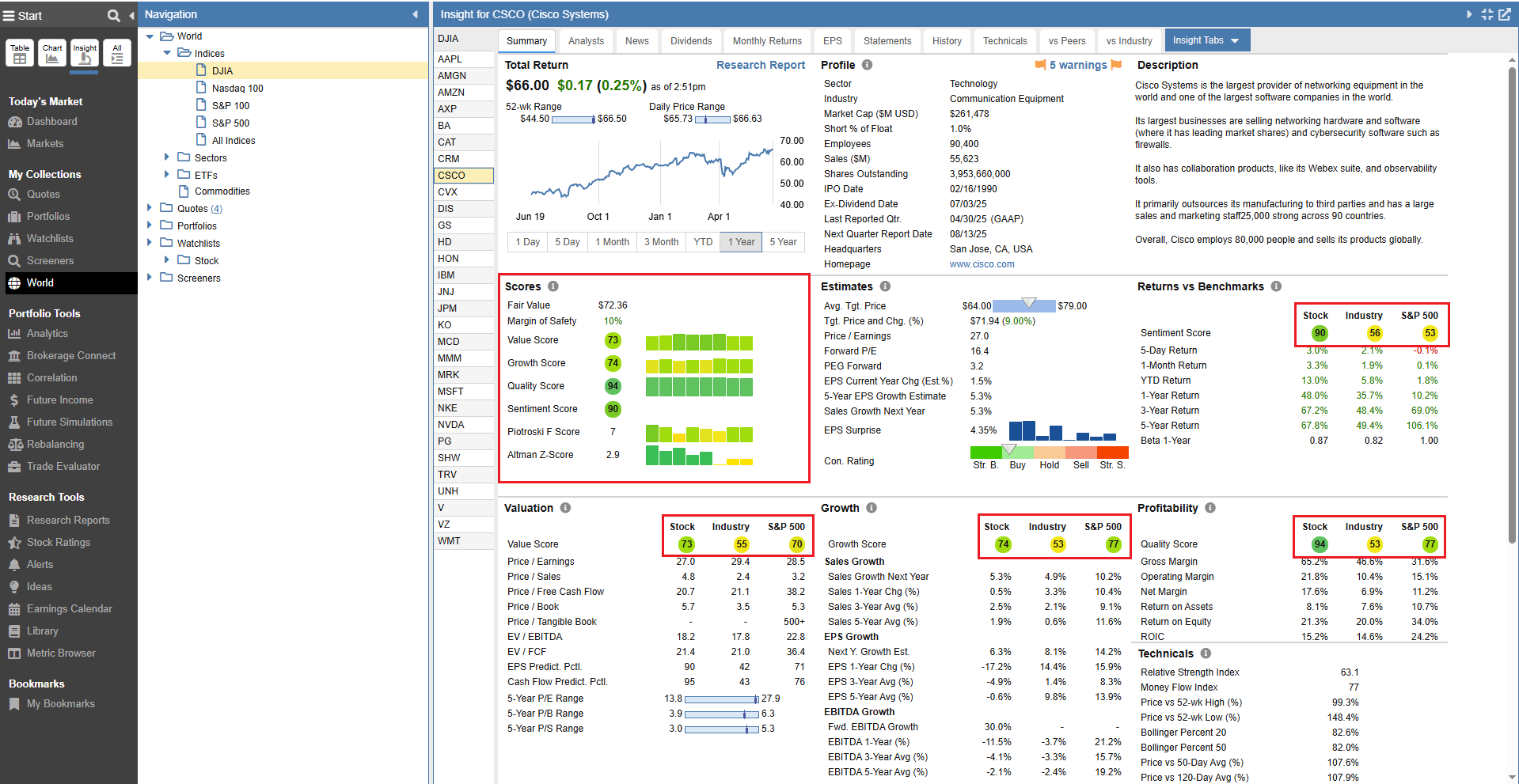
Note: There is an in-depth discussion of Stock Scores in this blog post, and further detail on Fair Value and Margin of Safety in this blog post.
You can also find an in-depth discussion of the Piotroski F-Score in this blog post.
Research Links
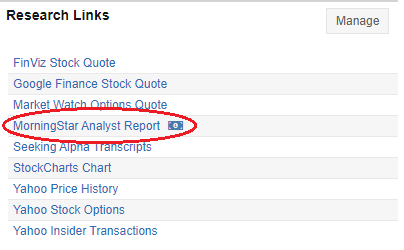
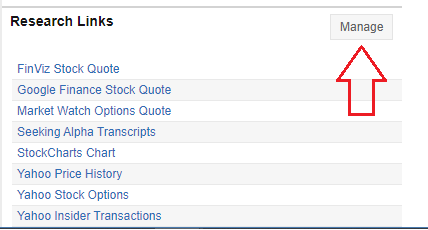
At the bottom of the Summary tab in the Insight Panel, you will find a list of links to external investment research websites. Clicking a link opens that website in a new browser tab, often navigating directly to the selected stock’s specific page.
When a listed website requires a subscription or login, a cash icon appears next to the name (circled in red below).
To customize this list, click the ‘Manage’ button at the top of the section.
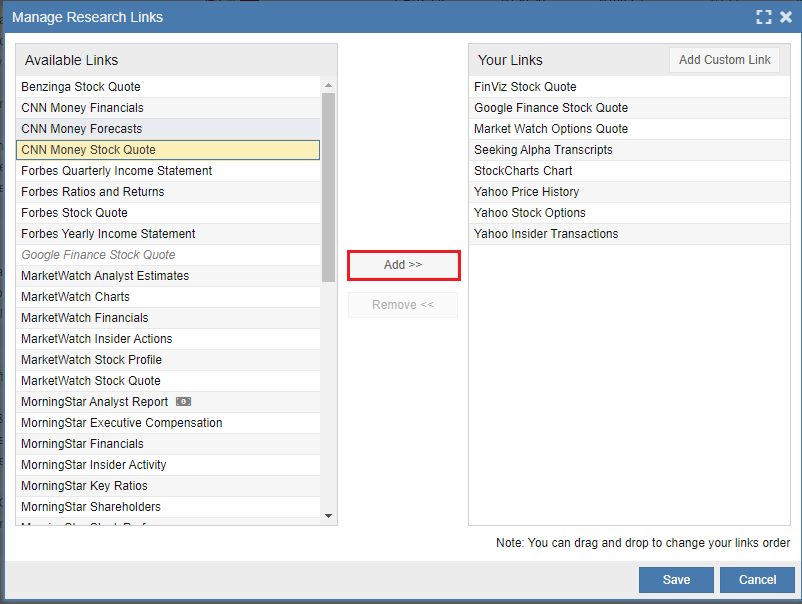
This opens the Research Links window, showing all links built into Stock Rover. To add a link to your active list, highlight it on the left and click ‘Add’.
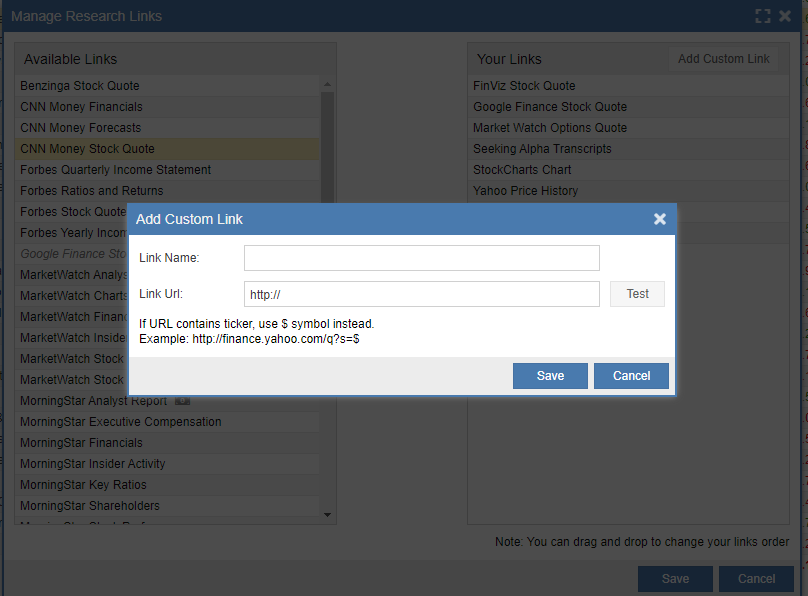
If you would like to add a link not already in the system, click ‘Add Custom Link’. You can enter a fixed URL or a ticker-responsive URL by using a dollar sign ($) in place of the ticker symbol. Clicking a responsive link will then take you to specific information for whichever ticker you have currently selected.
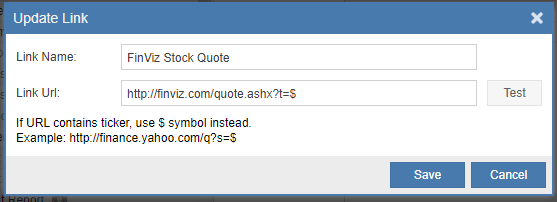
To edit an existing link, highlight it under ‘Your Links’ and click ‘Modify’. This allows you to update the name or URL and test the link to ensure it works correctly.
Limits for Stock Scores and Investor Warnings
The Premium Plus and Ultimate plans include unlimited access to Stock Scores and Investor Warnings. The Premium plan allows you to access these metrics for up to 20 distinct tickers per month.
For the Premium plan, if you have unlocks available, the lock icon will appear green. Click the lock to display the values; you will then have access to that ticker’s scores and warnings for the remainder of the month.
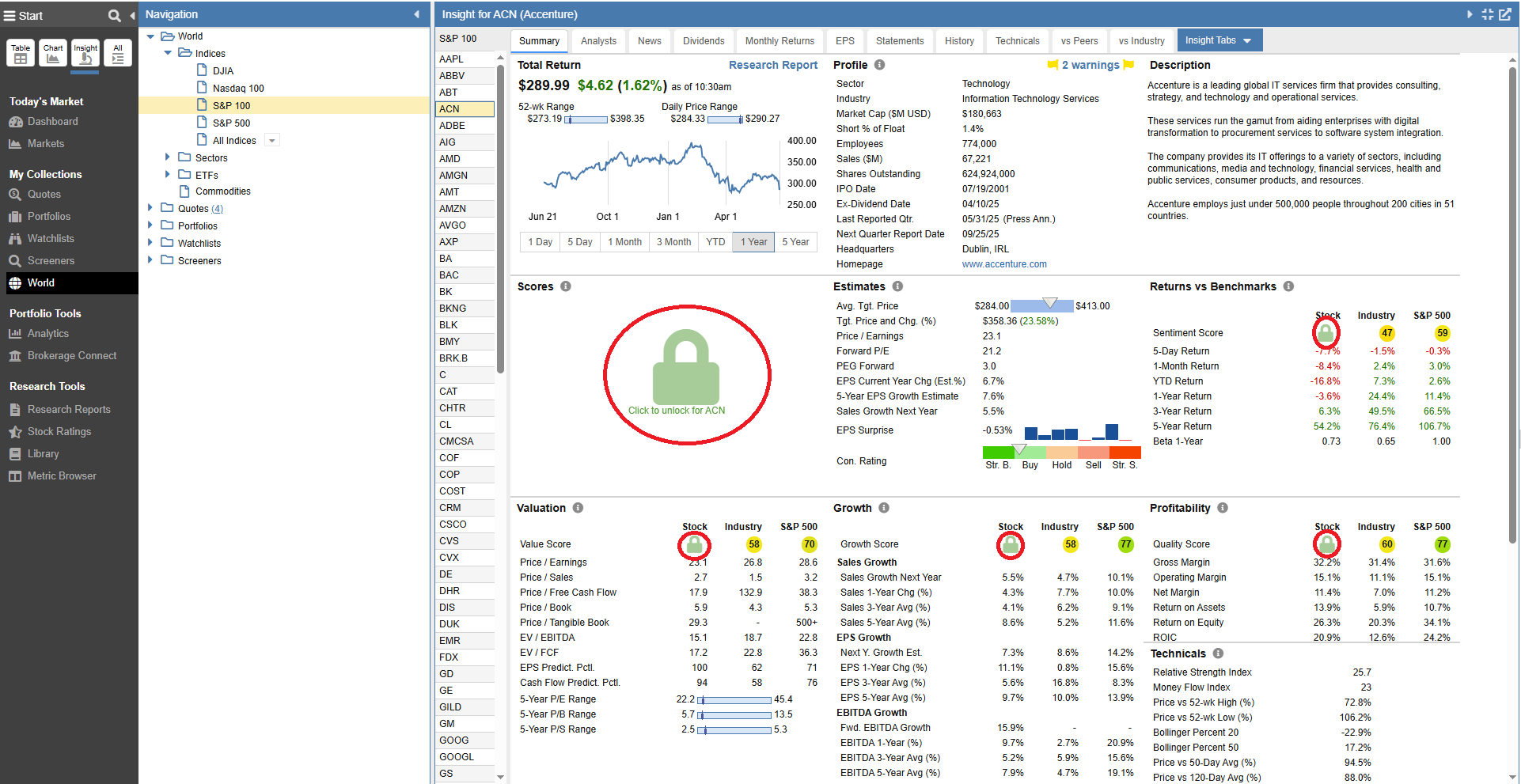
If you have reached your monthly limit, the lock will appear grey, and you will be unable to unlock additional tickers until the following month.