Managing Bookmarks
Managing Your Bookmarks
As your research needs evolve, you may want to reorganize, rename, or remove your shortcuts. The My Bookmarks interface provides a central management window to ensure your quick-access list remains efficient and relevant to your current strategy.
Renaming a Bookmark
Keep your navigation clear by updating bookmark names as your focus shifts.
- Open My Bookmarks from the Start Menu.
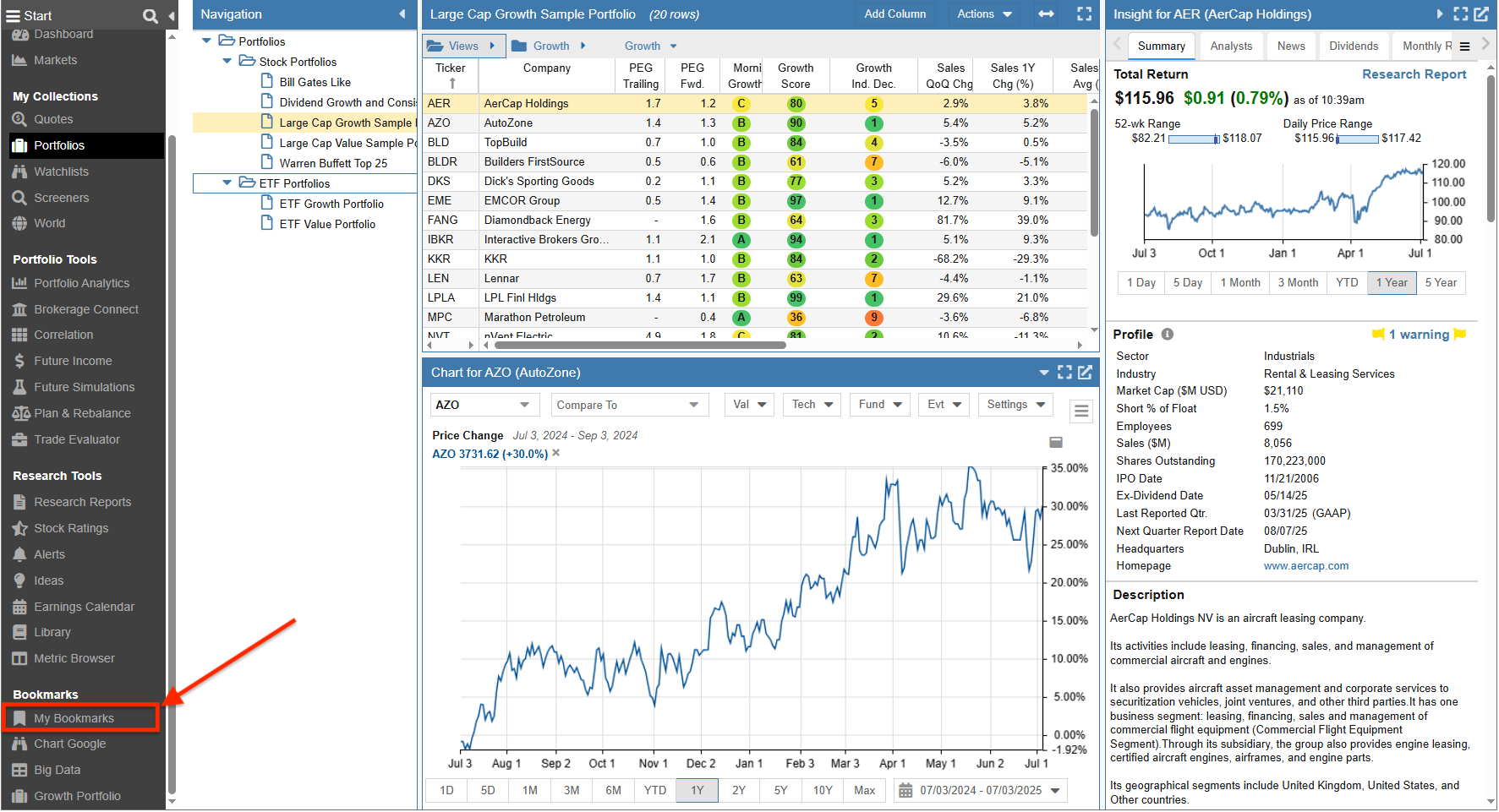
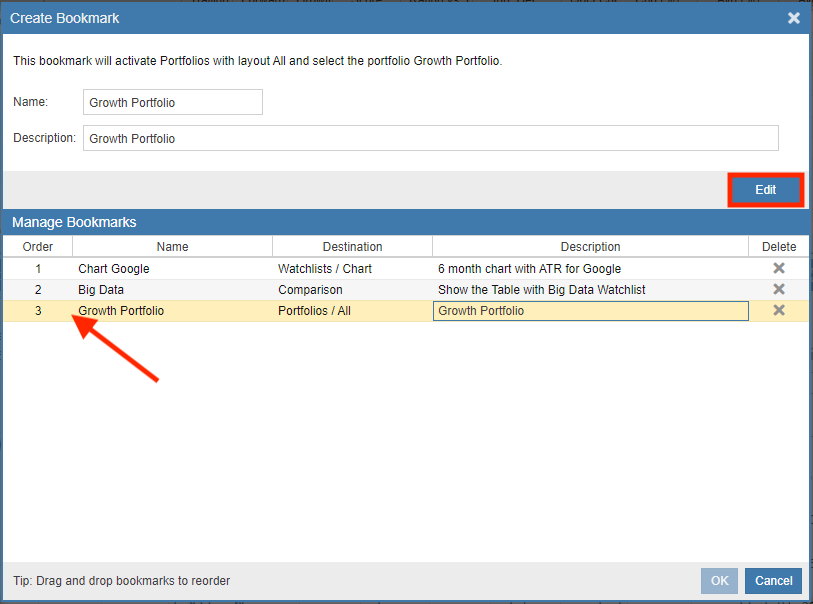
- Select the bookmark you wish to modify and click the ‘Edit’ button.
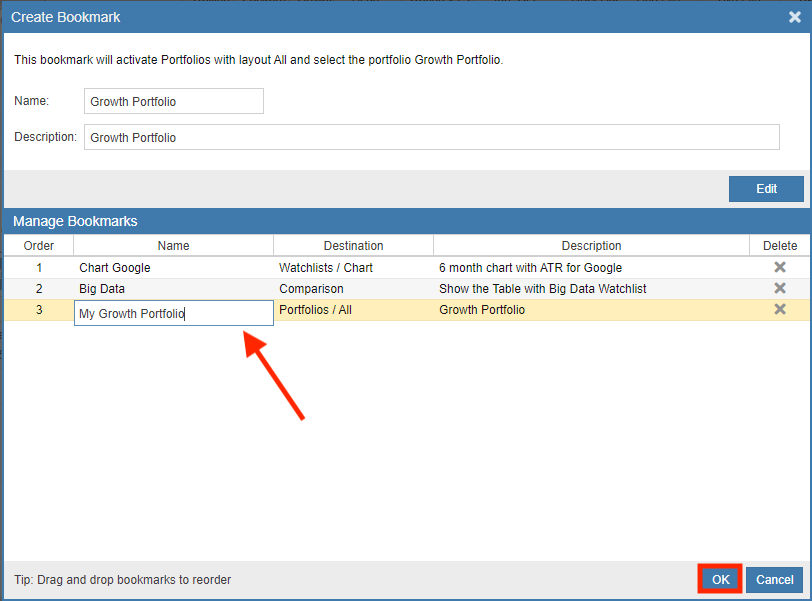
- Type the new name into the text field and click ‘OK’ to save.
Updating Bookmark Descriptions
Detailed descriptions help you remember the specific parameters or the “why” behind a saved view.
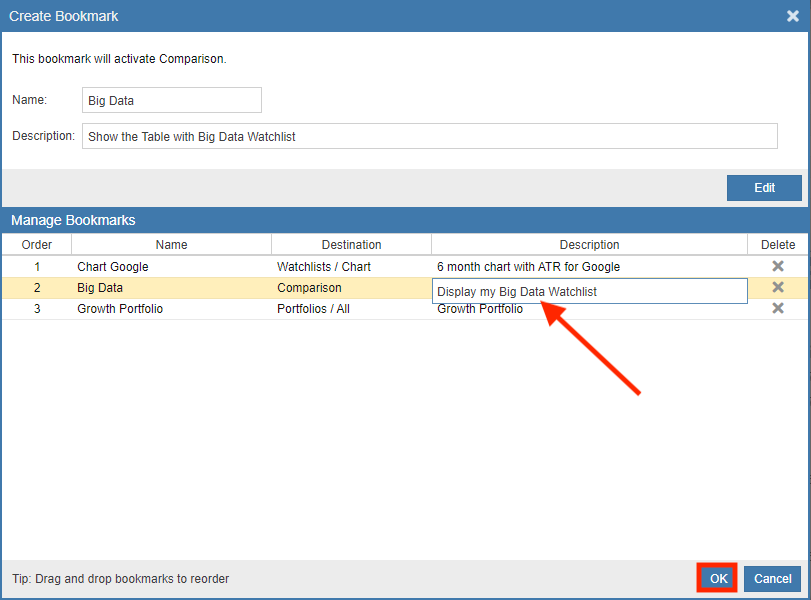
- Access My Bookmarks and click ‘Edit’ on your chosen shortcut.
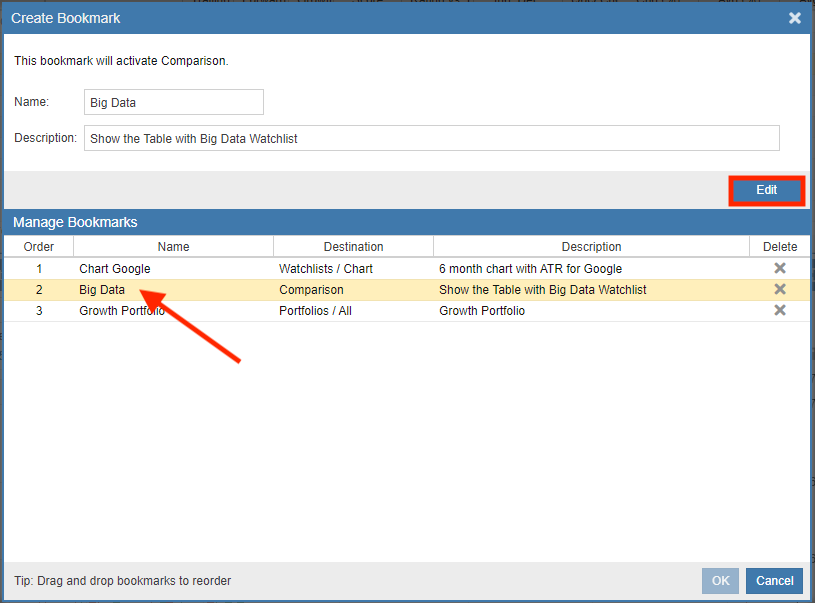
- Update the text in the description box and click ‘OK’.
Reordering and Deleting
To prioritize your most important tools, you can manually arrange your bookmarks or remove those you no longer need.
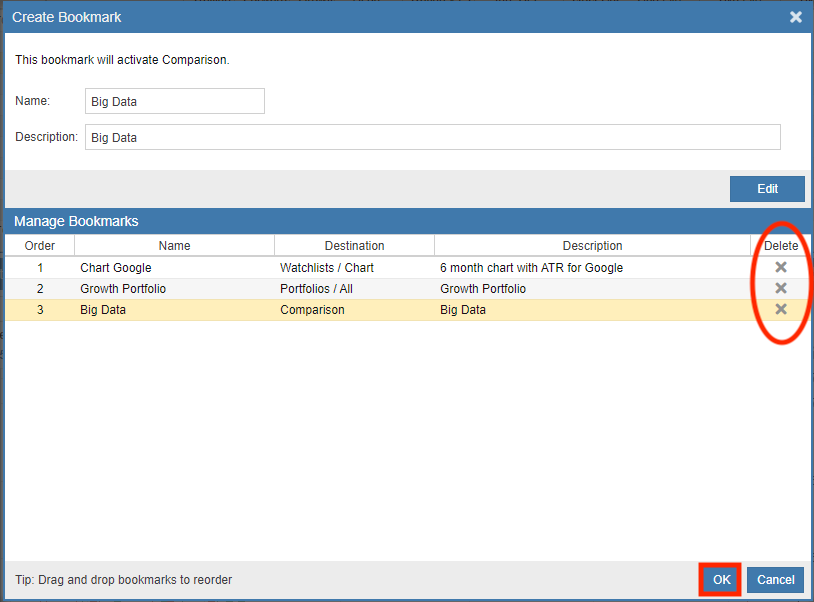
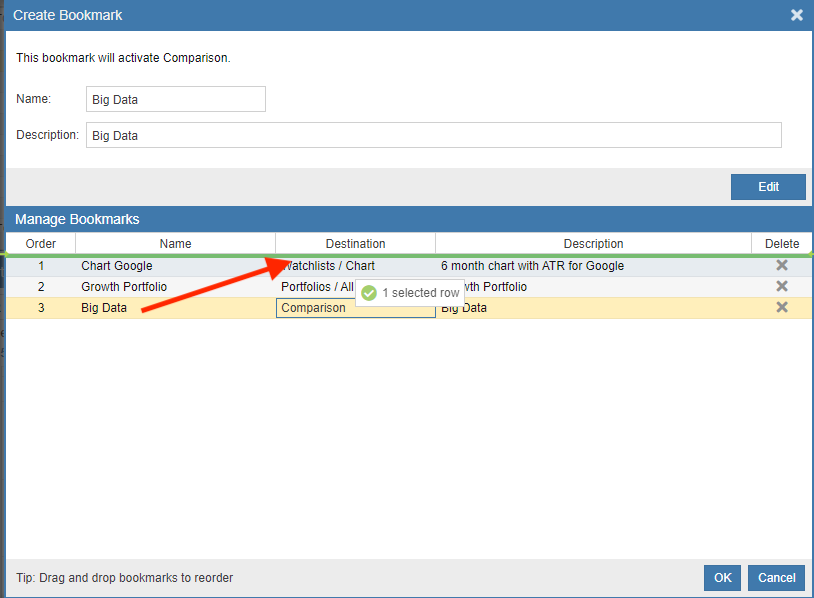
- To Reorder: Simply click and hold a bookmark, then drag and drop it to your preferred position in the list.
- To Delete: Click the ‘x’ icon next to the bookmark name and confirm by clicking ‘OK’.