Stock Charting

Professional Stock Charting

Stock Rover brings together deep fundamental data, powerful screening, smart portfolio management, and real-time analysis into a single, unified workspace designed for serious investors.

Overview

Effective long-term investing requires a clear understanding of historical performance and valuation context. Stock Rover’s charting engine provides the analytical tools necessary to evaluate 20 years of financial history and 100s of metrics within a single interface. For the investor, this allows for an objective audit of a stock or ETF’s financial health and price behavior across multiple market cycles, ensuring that investment decisions are grounded in long-term data rather than short-term market noise.

Benchmark Performance

Jumpstart your research with 150+ prebuilt screener strategies covering a wide range of investing methodologies. These ready-to-use screens allow you to instantly deploy strategies such as:

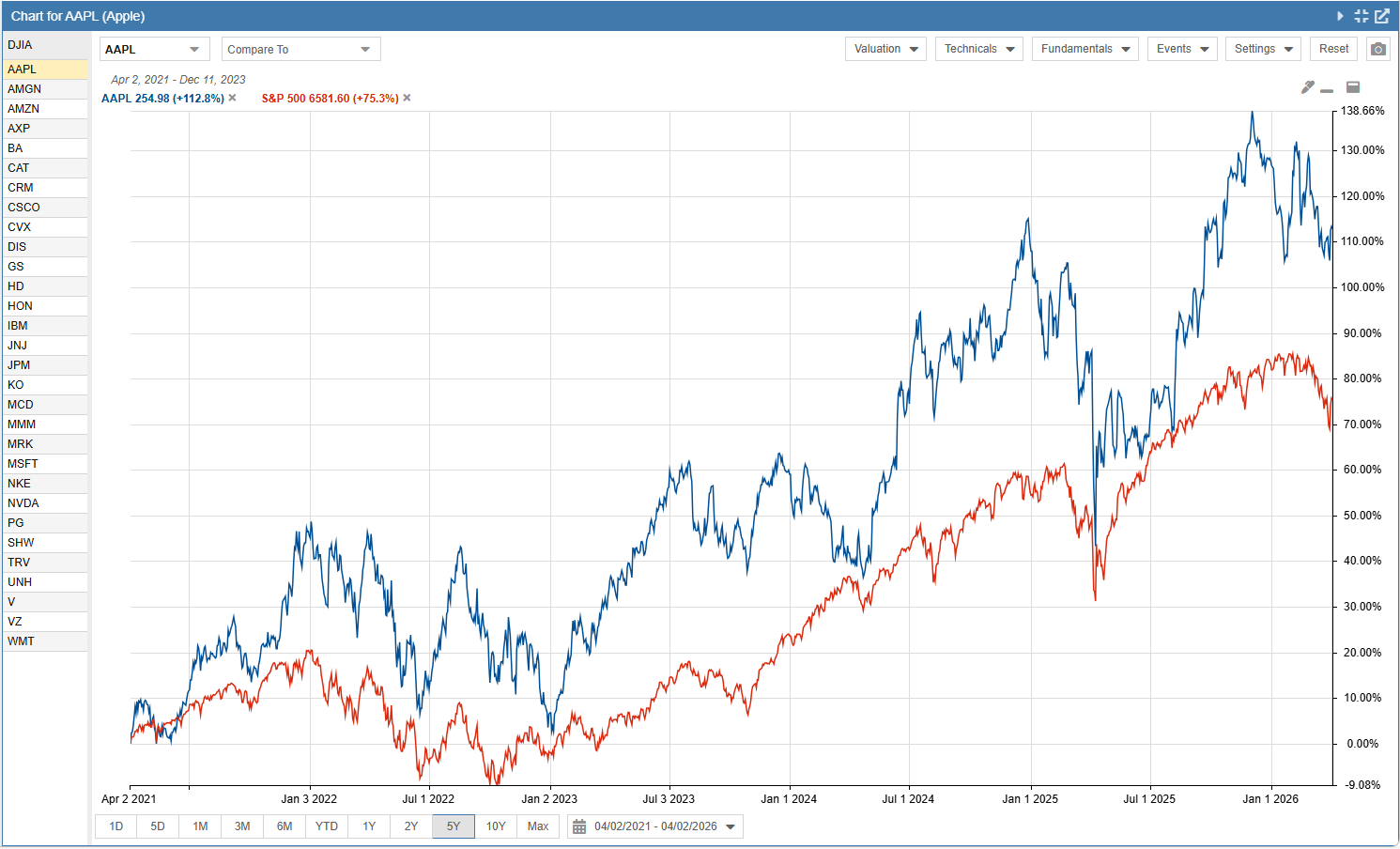
Total Return vs S&P 500

Compare price performance and dividends over 5, 10, or 20-year periods to identify long-term leadership.

Ratio Charts

Divide a ticker by a benchmark (e.g., MSFT / SPY) to visualize periods of outperformance or relative weakness.

Risk Analysis

Chart historical Maximum Drawdown to evaluate the volatility profile of a holding during market corrections.

20-Year Fundamental History

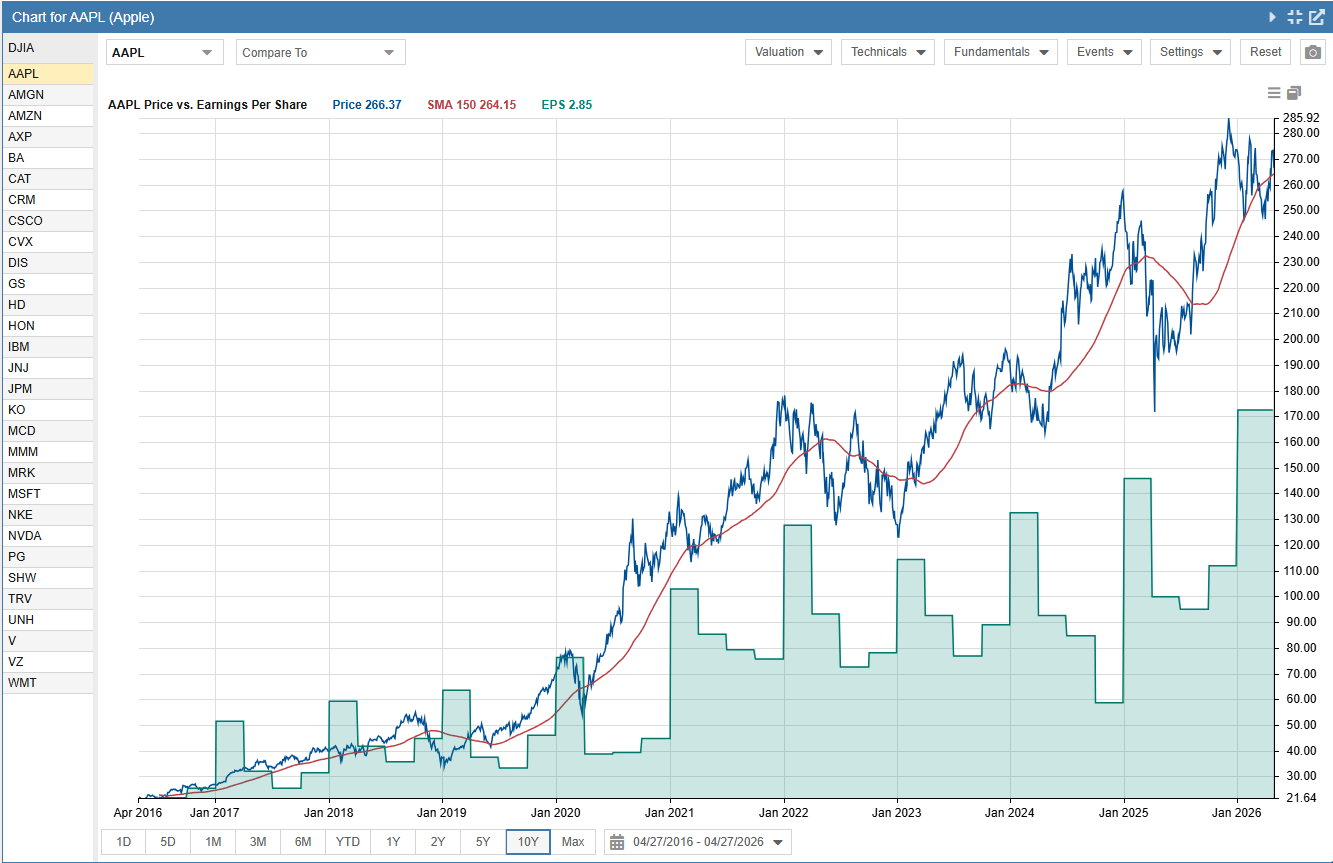
Analyze the underlying financial health of a stock or ETF by plotting core fundamental metrics.

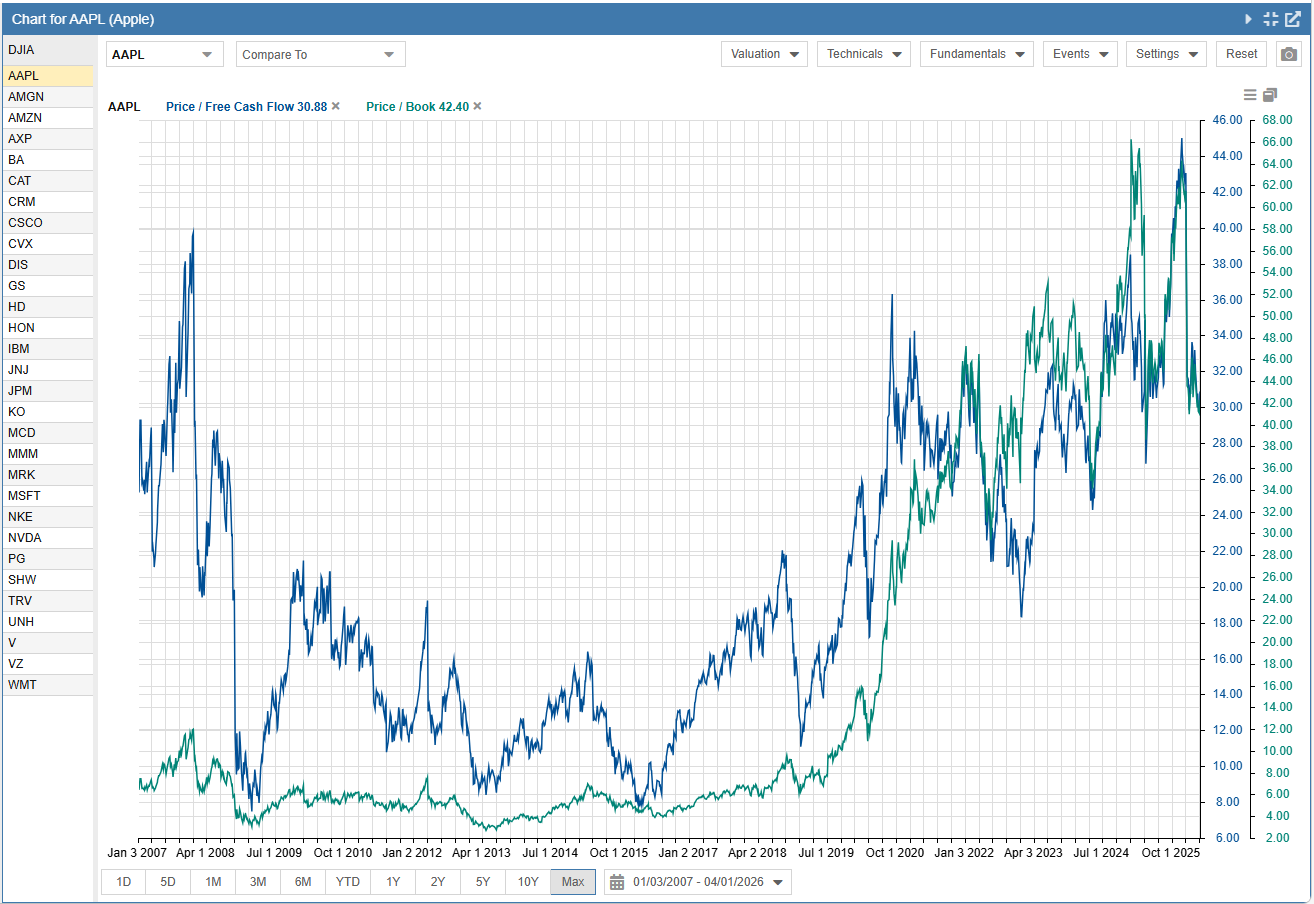
Metric Plotting

Graph Revenue, Net Income, and Free Cash Flow across two decades to identify long-term structural trends.

Dividend Metrics

Overlay Dividend Yield and Payout Ratio to evaluate the sustainability of an income stream.

Financial Ratios

Plot Debt-to-Equity or Operating Margin stability to audit the balance sheet across multiple economic cycles.

Valuation Ranges and Norms

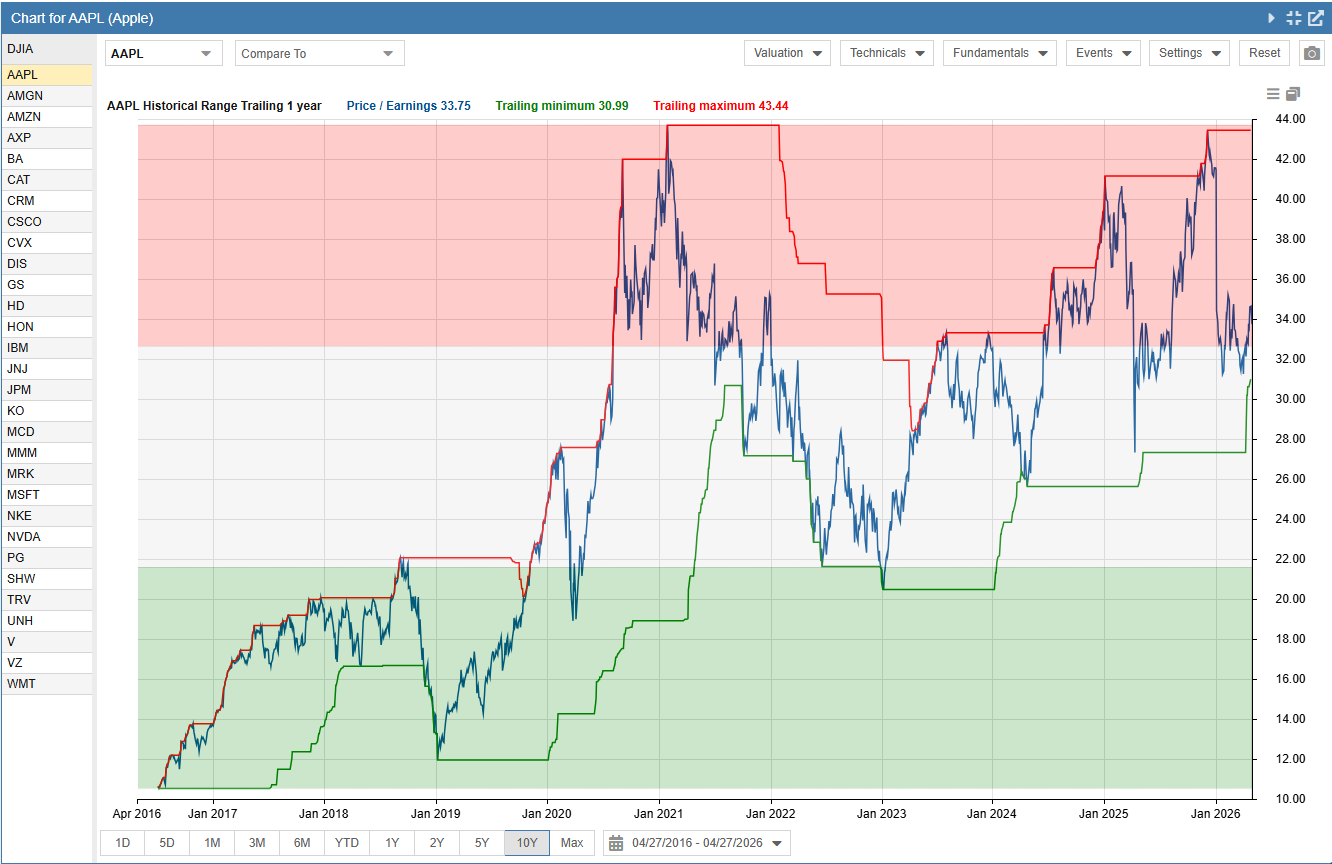
Determine the current price context by comparing valuation metrics against historical minimums, maximums, and averages.

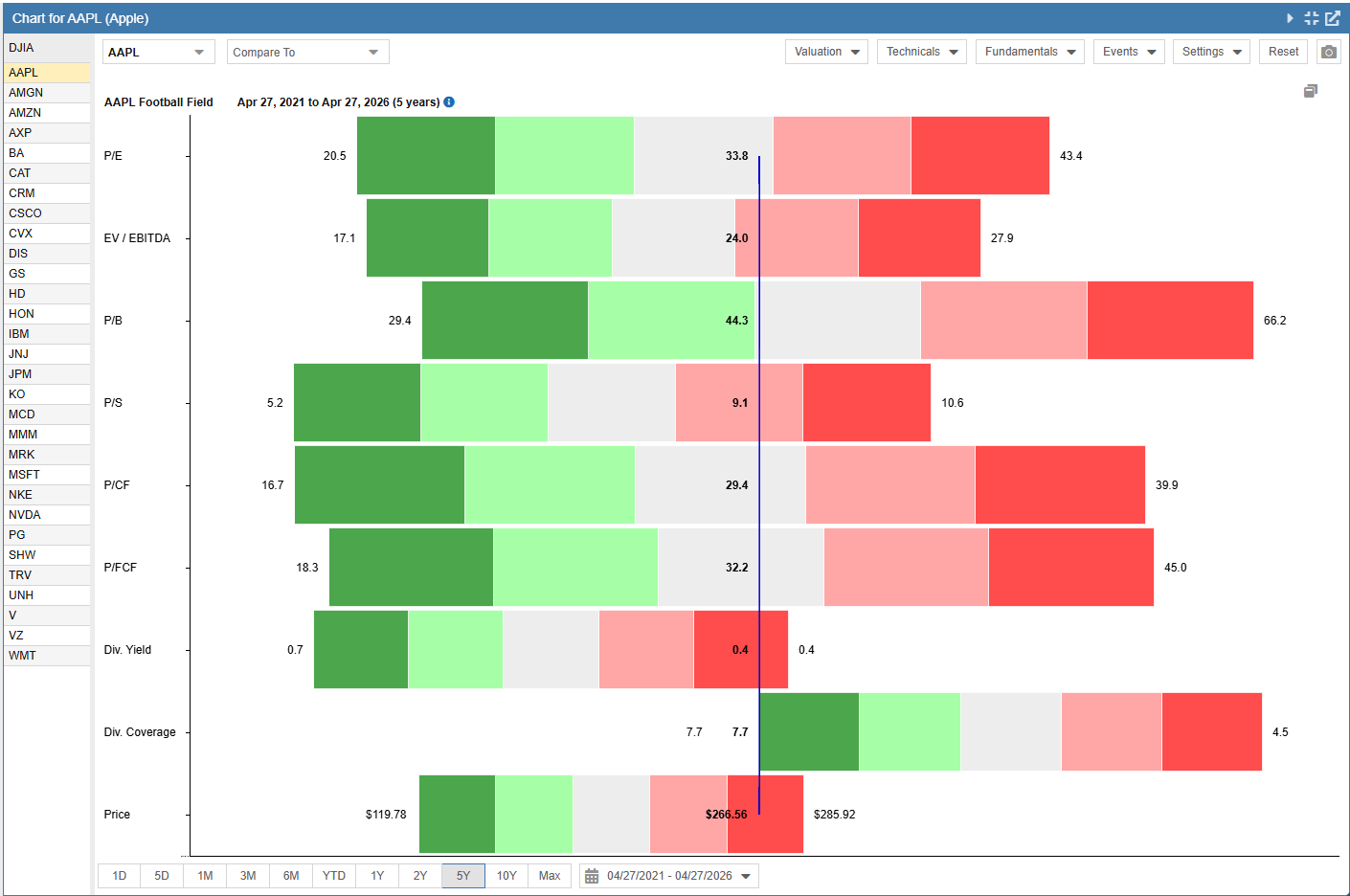
Football Field Analysis

View a visual summary of current price relative to 52-week ranges and valuation benchmarks like P/E and Price/Sales compared to their 5-year averages.

Historical Benchmarking

Visualize where current valuation metrics sit within their historical range to identify significant deviations from the norm.

Scatter Plot Analysis

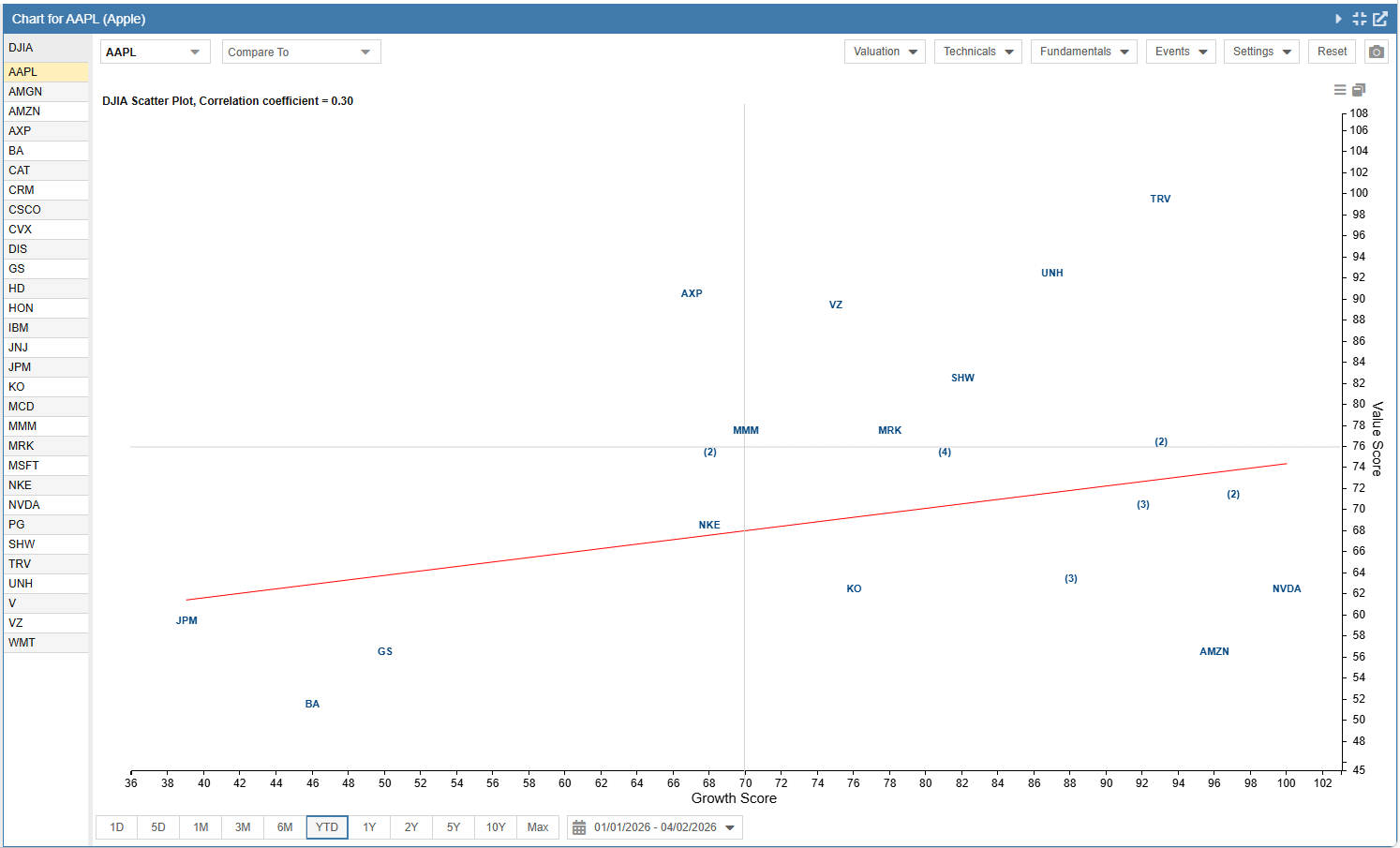
Compare a collection of stocks across specific axes, such as Risk vs. Return or Value vs. Growth, to identify outliers.

Analyst Sentiment and Market Events

Coordinate price action with external data points and analyst research to understand the drivers behind historical moves.

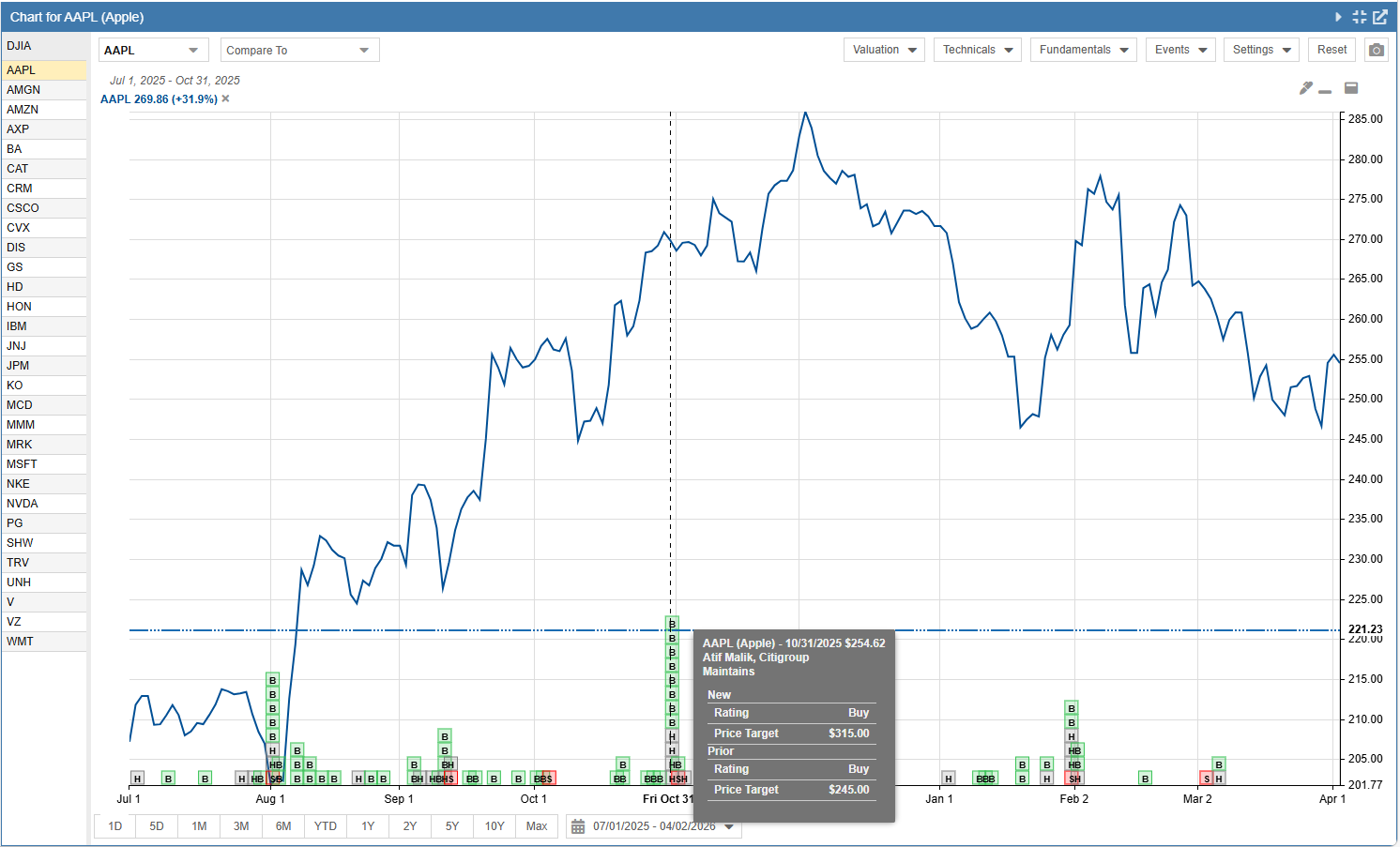
Analyst Events

Overlay upgrades and downgrades directly on the price chart. Click any event to see the details of the sentiment shift.

Earnings Surprises

Plot quarterly execution relative to analyst expectations to evaluate historical consistency.

Corporate Actions

Overlay dividend payouts and stock splits directly on the timeline to correlate these specific market events with price movement and fundamental changes.

Technical Analysis and Support Levels

Utilize technical indicators to identify potential accumulation zones and manage entry points for long-term positions.

Moving Averages

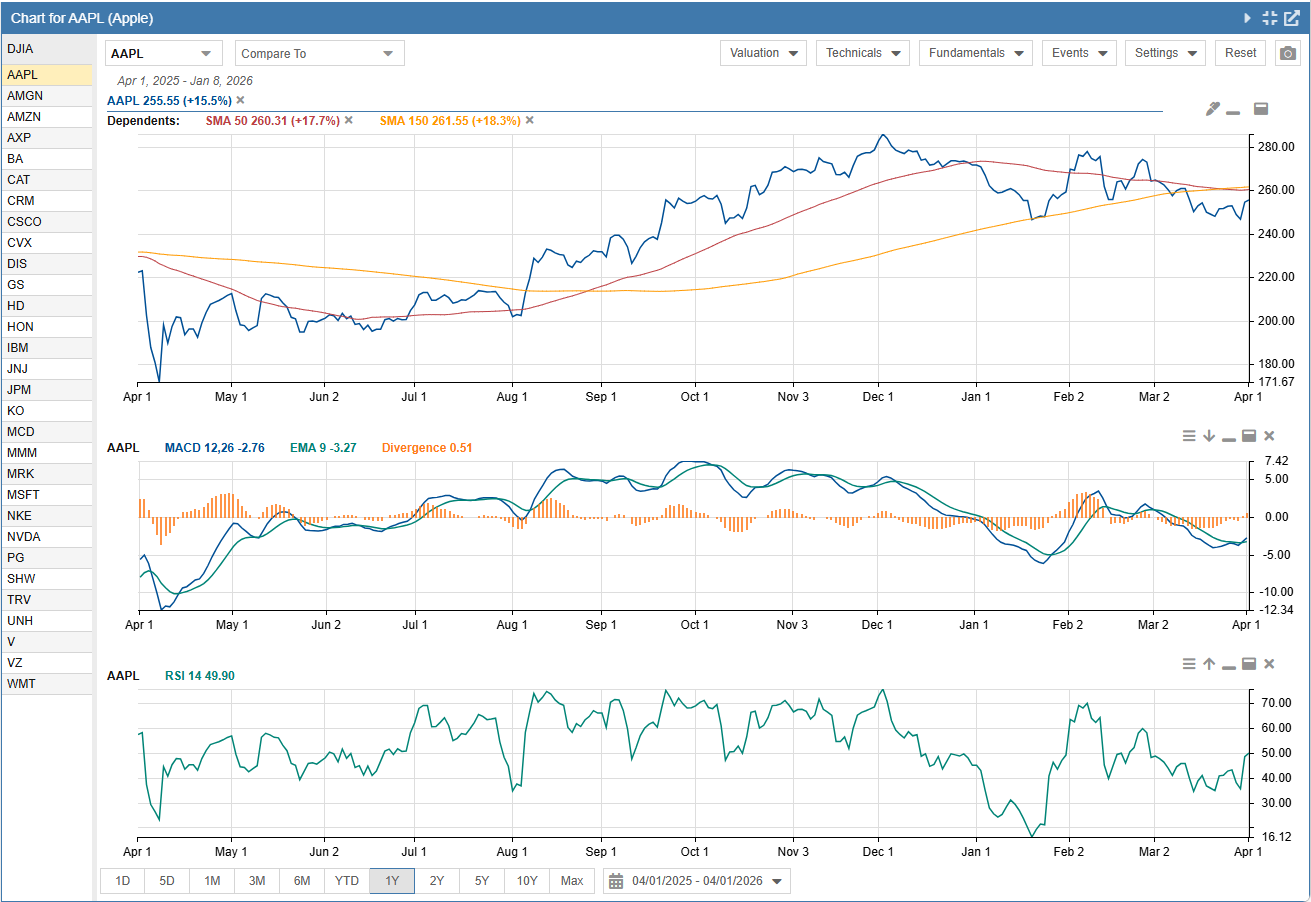
Apply Simple Moving Averages (50-day and 200-day) to identify long-term trend support and resistance.

Price Extremes

Layer RSI or Bollinger Bands to identify periods where a security is historically overbought or oversold.

Trendline Analysis

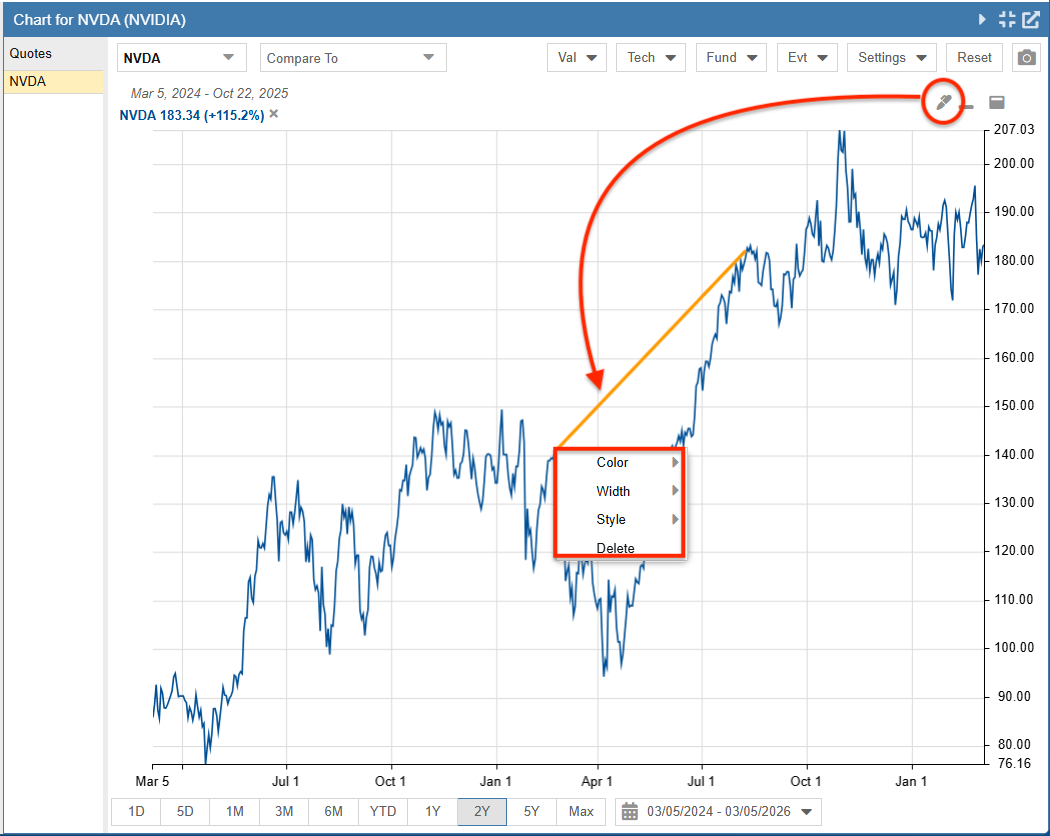
Use the drawing tool to manually identify support and resistance levels, helping to define price channels and long-term trend shifts

Stock Charting Resources

Didn’t answer your question? See our help pages, or email us at support@stockrover.com.

Frequently Asked Questions

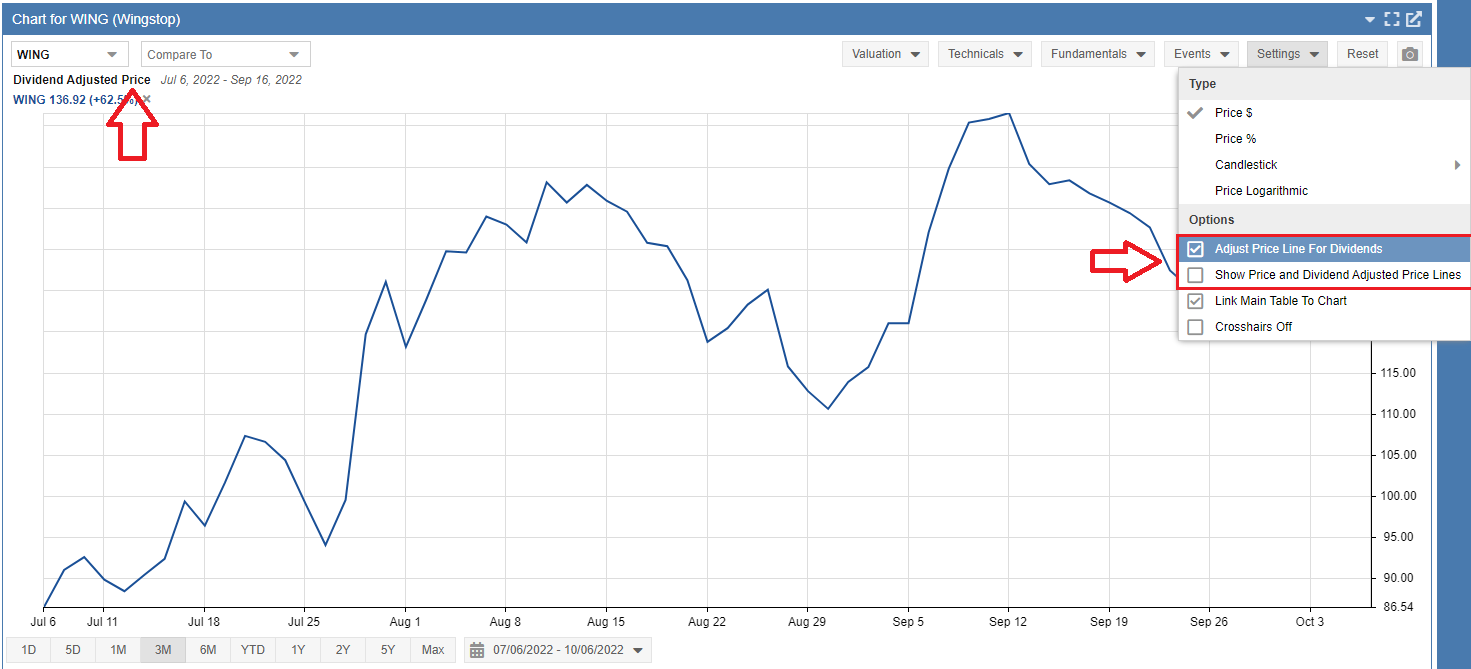
There are few ways to display the dividend-adjusted price for a stock in the chart. The first method is to select the ‘Settings’ menu for the chart and select the ‘Adjust Price for Dividends’ option or Show Price and Dividend Adjusted Price Lines. The second method is to click on Price above the chart legend so it changes to Dividend Adjusted Price. If the price has not been adjusted the chart will be labeled ‘Price’ or ‘Price Change.’

Note that charted portfolios always include dividends, regardless of the dividend chart setting.

Dividend Buttons in Chart

Yes. They do include dividends in the Chart if you are charting total return (see the first question for information on how to include dividends in the Chart).

Yes, selecting ‘Adjust Price for Dividends’ charts all items assuming dividend reinvestment.

The price display settings can be changed between price in dollars, price in percent change, candlesticks, and a price logarithmic chart in the ‘Settings’ menu for the chart. Please note that the ‘Price’ settings are only available when a single stock is displayed. If multiple stocks are displayed in the chart, the price will always be displayed in percent change (Price %).

For more details, see Chart Display Options in the help documentation.

There are two ways to set a stock (or any other line in a chart) as a baseline by which others are measured. One way is to simply click its name in the Chart’s legend. Click it again to undo this setting. Or, if the item is listed in the ‘Compare’ menu, you can click the small graph button next to the ‘X.’ For screenshots of these actions, see the charting help documentation.

Yes, to print or save an image of the chart, you can click the Save to Image button on the chart. See the Charting help for more detail. If you are using the image in a blog post or other publication, we kindly request that you cite Stock Rover as the source of the image.

If you want to print directly from the browser instead of using the Save Image icon, there are a couple of browser plugins that could help with the printing:

Firefox Plugin

Chrome Plugin

Currently no, but this is on our long-term roadmap.

To open your chart in a new window, simply click the pop-out arrow button located in the top right corner of the Chart panel. If the new window doesn’t open properly at first, you may need to clear your browser cache.

Not right now, but this is on our roadmap.

The Value Over Time chart in the Portfolio Analysis window calculates a personal return instead of an investment return—so it cares about the relative value of the portfolio on each day.

The two charts are similar in that when Portfolios are charted in the charting facility, the chart assumes immediate dividend re-investment. This is also true in the Return values displayed in the Portfolio Analysis facility. However, the difference between the two charts is due to the fact the Portfolio Reporting chart in the Portfolio Analysis facility actually uses a more complicated performance formula which more accurately reports return.

For example, let’s say you have a portfolio with just one stock in it. Say (by some enviable precognition) you managed to own 100 shares of the stock on its up days, but only owned 1 share of the stock on its down days. The Chart in the main app would show you as 100% into this stock on every day, and so it would show your return equal to the return of the stock. However, the Portfolio Analysis chart is able to account for the varying quantities, and would be able to more accurately display your return for the period. So, in this example, the Value Over Time chart in the Portfolio Analytics facility would look much stronger than the main Chart.

Charting Help